Best Dictation Software for Mac in 2026: 8 Apps Compared on Permissions, Privacy and Punctuation
The best dictation software for Mac comes down to one fork in the road. If you want words to appear as you speak, inside whatever app your cursor is already in, you want a live dictation app. If you want to turn a recorded audio file into a document, you want a transcription tool. This guide covers the first kind.
Eight apps are compared below on four things most Mac roundups skip: how you start each one, which macOS permissions it asks for at install, whether your audio leaves the machine, and whether the text you produced is kept anywhere afterwards. If voice typing is new to you, the walkthrough on how to dictate on a Mac covers the basics first.
What Changed on the Mac: Dragon Left and Whisper Wrappers Took Over
For twenty years, serious Mac dictation meant one product. Nuance sold Dragon for the Mac, it cost hundreds of dollars, and it was the only real answer. Nuance stopped selling the Mac version in 2018. Nothing replaced it for years.
Two things changed that. First, OpenAI released the Whisper speech model as open source in 2022. Anyone could now build an accurate speech to text app without training a model. Second, Apple silicon made that model fast enough to run on a laptop.
The result is the field you see today. Most Mac dictation software is a small app wrapped around a local speech model. You hold a key, you talk, and text lands at the cursor. The app itself stays out of sight in the menu bar.
Apple did not stand still either. macOS dictation used to cut you off after 60 seconds. It no longer does, and on Apple silicon it can run on the device for supported languages. That makes the built in tool a real option, not just a fallback.
So the question is no longer which app is accurate. Most of them use similar models and land in a similar place. The question is how each one behaves on your Mac, and what it does with what you said.
What We Compared to Find the Best Dictation Software for Mac
Every Mac list scores accuracy, speed and price. Those matter, and they are covered below. But they are also the four things every list already tells you, which is why they rarely help you choose.
Four other columns decide whether an app sticks. None of the pages ranking for this topic tabulate them.
- Activation model. Do you hold a key and release it, or tap a key to start and tap again to stop? Hold to talk suits short bursts, like a Slack reply. A toggle suits long stretches, like a first draft. Which key it uses matters too, because the Fn key is already busy on a Mac.
- Permissions demanded at install. Any app that types into another app has to be allowed to do so. On macOS that means Microphone at minimum, and usually Accessibility as well. Some also ask for Input Monitoring so they can watch for your shortcut.
- Whether audio leaves the Mac. A local model keeps the sound on your machine. A cloud service uploads it. Both are fine choices, but you should know which one you picked.
- Whether the text is kept. This is the column nobody writes. Audio privacy gets discussed constantly. Almost nobody asks what happens to the sentence after it lands in your email. Some apps hold a searchable history, some hold none, and the difference shows up months later.
That last pair is worth separating in your head. An app can discard your audio and still store your words, or upload your audio and store nothing. If that trade matters to you, the guide to zero data retention in voice apps unpacks what the phrase actually promises.
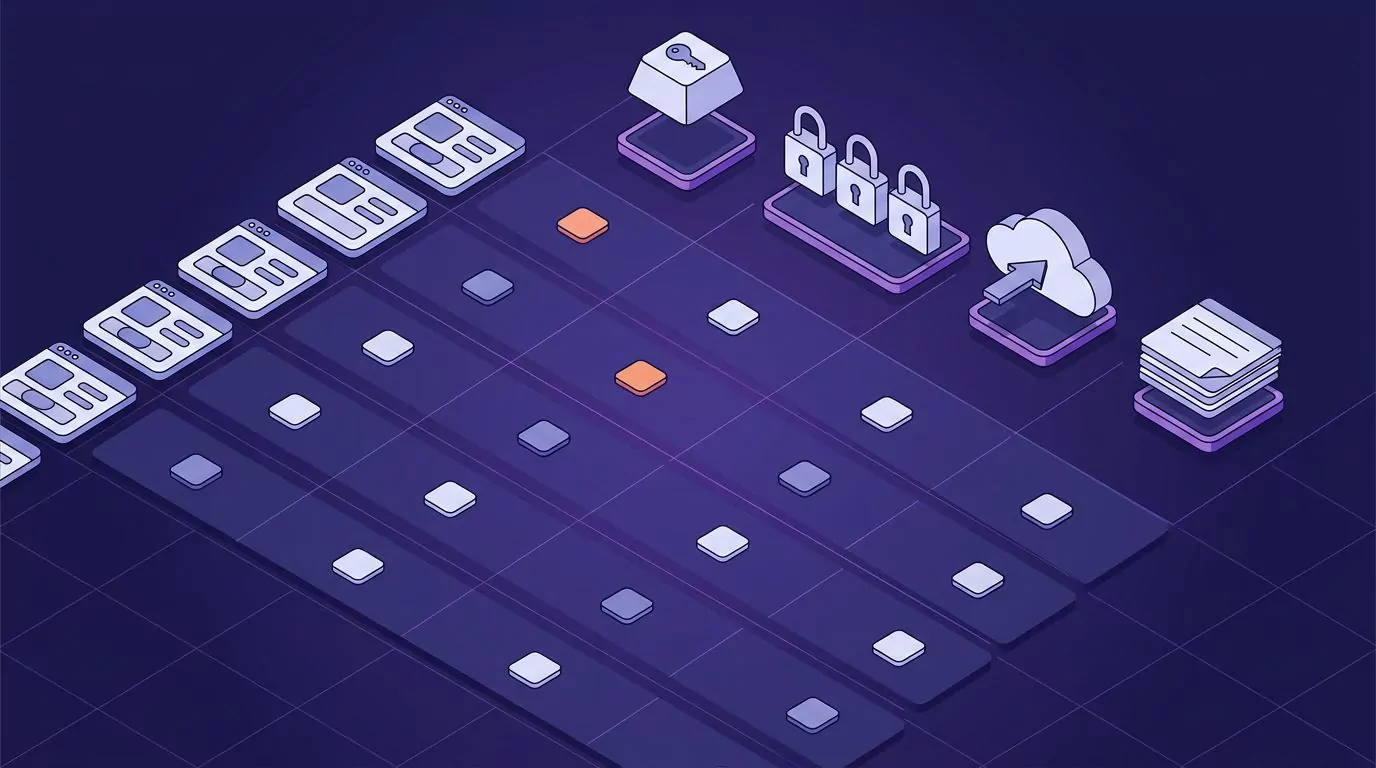
Mac Dictation Apps Compared at a Glance
Prices were checked in August 2026 and change often. Treat them as a guide, not a quote.
| App | How you start it | Password fields | Permissions asked for | Does audio leave the Mac | Is the text kept | Price |
|---|---|---|---|---|---|---|
| Apple Dictation | A shortcut you pick, tap to start and tap to stop | Blocked by macOS | None to grant, it is part of macOS | No on Apple silicon for supported languages | No, nothing is stored | Free with macOS |
| Superwhisper | Hold Option and Space by default | Blocked while secure input is on | Microphone, Accessibility | No in local mode, yes in cloud mode | Yes, a history folder on your Mac | Free tier, about $8.49 a month, lifetime near $250 |
| MacWhisper | A hotkey you set, plus a window for files | Blocked while secure input is on | Microphone, Accessibility for dictation | No, the models run on the Mac | Yes, in its own file library | Free tier, Pro about 59 euros once |
| Wispr Flow | Hold the Fn key by default | Blocked while secure input is on | Microphone, Accessibility | Yes, it is a cloud service | Yes, a history inside the app | Free 2,000 words a week, then roughly $12 to $15 a month |
| VoiceInk | A hotkey you set at first launch | Blocked while secure input is on | Microphone, Accessibility, Screen Recording only for screen context | No, the models run on the Mac | Yes, with a 24 hour or 7 day auto delete option | Free trial, then $29 once for one Mac |
| Willow | Hold the Fn key by default | Blocked while secure input is on | Microphone, Accessibility | Yes by default, offline mode runs on device | Zero data retention is enforced on the Business plan | Free tier on a weaker model, Pro $12 to $15 a month |
| Voibe | Hold the Fn key, or double tap for hands free | Blocked while secure input is on | Microphone, Accessibility | No in on device mode on Apple silicon | Not stated on the site | $7.50 a month, $59 a year, or $149 once |
| VoiceSnap Pro | Hold a shortcut you choose | Blocked while secure input is on | Microphone at setup | Yes, then the audio is discarded | Yes, every dictation becomes a searchable note | $39 one time early access, still pre launch |
One column is the same for all eight, and that uniformity is the finding. No Mac dictation app types into a password field. The reason is a macOS feature called secure input, and it is covered in its own section below.
The Eight Mac Dictation Apps, One by One
Each entry below covers what the app is good at, and where it is weak. No tool here wins every column.
Apple Dictation: the free baseline already on your Mac
Turn on Apple Dictation in System Settings, under Keyboard. Pick a shortcut, put your cursor in a text field, and press it. Apple's own page notes you can dictate text of any length now, and that it stops on its own after 30 seconds of silence.
Strengths: it costs nothing, it asks for no extra permissions, and on Apple silicon it can run on the device for supported languages. Nothing is stored afterwards.
Weaknesses: auto punctuation covers commas, periods and question marks only, and it is on by default. Everything else you still say out loud, including "exclamation mark" and "new paragraph". It is a toggle rather than a hold to talk key, so short replies feel clumsy.
The bigger gap is cleanup. It does not strip filler words or reshape a half formed sentence the way the paid apps do. For many people that is exactly why they go looking for Apple Dictation alternatives in the first place.
Best for: anyone who wants to test whether dictating suits them before paying for anything.
Superwhisper: the most configurable local option
Superwhisper holds Option and Space by default, and it runs speech models on your Mac. It also offers cloud models if you want a bigger one. Custom modes let you set different cleanup rules for email, notes and code.
Strengths: deep customisation, a genuine local mode, and versions for macOS, Windows and iOS. Offline models run best on Apple silicon.
Weaknesses: setup takes longer than the rest. You pick models, tune modes and grant permissions before it feels smooth. It also keeps a history folder in your home directory. Check where that folder lives, because the default can sit inside iCloud Drive and sync to your other devices.
Best for: people who enjoy tuning a tool and want it to behave differently in different apps.
MacWhisper: the one to pick when files matter too
MacWhisper started as a way to drop an audio file onto a window and get a transcript. Live dictation came later. That history still shows in the app.
Strengths: it handles both jobs. Everything runs on your Mac, and the free tier is genuinely usable. Pro is a one time purchase on Gumroad, around 59 euros, which suits anyone allergic to subscriptions. Note that the Mac App Store edition is sold separately and priced differently.
Weaknesses: as a pure hold to talk app it is less polished than the ones built only for that. It is Mac only. Several headline features want Apple silicon.
Best for: anyone who also needs to transcribe recordings, not just dictate live.
Wispr Flow: the smoothest writing feel
Wispr Flow holds the Fn key by default. It rewrites as you go, so filler words vanish and half formed sentences come out clean. Of everything tested here, it produces the most finished prose with the least fiddling.
Strengths: excellent cleanup, low latency, and apps for Mac, Windows, iPhone and Android. The free tier gives 2,000 words a week with no card required.
Weaknesses: it is a cloud service, so your audio goes to its servers and it needs an internet connection. There is no local mode. Paid plans land in the $12 to $15 a month range, which is the top of this field. It keeps a history of your dictations inside the app, with controls in its settings.
Best for: writers who want the output to need no editing and do not mind cloud processing.
VoiceInk: open source, one payment, Apple silicon only
VoiceInk is the open source entry, published under GPL v3. It runs local models and never sends your voice anywhere. Licences start at $29 for one Mac, $49 for two and $69 for three, paid once.
Strengths: it is the clearest about permissions of any app here. Its docs state it needs Microphone to record and Accessibility to paste reliably. Screen Recording is only requested if you turn on screen context. Transcripts are kept until you delete them, and you can set a 24 hour or 7 day auto delete.
Weaknesses: it needs Apple silicon and a recent macOS. There is no Windows build. You also manage model downloads yourself, which is a small chore.
Best for: people who want to read the source, pay once, and keep everything local.
Willow: cloud first, with a retention promise
Willow also holds the Fn key, and it is aimed at the same clean prose problem as Wispr Flow. Its pitch is what it does not keep. The homepage advertises zero data retention alongside SOC 2 Type II certification.
Check your plan before counting on that. Willow's pricing table puts enforced privacy mode and SOC 2 Type II under the Business plan, not free or Pro.
Strengths: fast, tidy output, and a stated retention policy you can point at. It runs on Mac, Windows and iPhone. The free tier is unlimited on its weaker Frontier Mini model, with 20 Scribe uses a week.
Weaknesses: in cloud mode, audio still leaves your Mac, so the promise is about what happens next, not about staying local. Pricing sits in the same $12 to $15 a month band as Flow. Its offline mode is newer than the local first apps here, so if staying local is the point, VoiceInk and MacWhisper have the longer track record.
Best for: teams that need a written retention policy more than they need local processing.
Voibe: local dictation with a lifetime option
Voibe defaults to the Fn key held down, with a double tap for hands free mode. On Apple silicon it can run on the device. On Windows it runs in a cloud mode instead, which is worth knowing before you buy for both machines.
Strengths: the pricing is the friendliest here. $7.50 a month, $59 a year, or $149 once. The activation model is the most flexible of the group, since hold and hands free are both first class.
Weaknesses: the site does not say whether it keeps your dictated text, which is exactly the gap this comparison is trying to close. On device mode also needs Apple silicon.
Best for: people who want a lifetime licence and a hold to talk key that also toggles.
VoiceSnap Pro: the entry that keeps what you said
VoiceSnap Pro runs on macOS and Windows. You hold a shortcut you choose, speak, and release. Punctuated text appears at the cursor in whatever field you were already in, with filler words removed. Setup is a shortcut and microphone access.
What sets it apart in this list is the second half. Every dictation is also saved as a note, tagged with the app you dictated into and the time. Those notes are grouped by day and by app, searchable by any phrase you actually said, and exportable as plain text or Markdown. The Slack reply you sent on Tuesday is still findable on Friday. That idea is the same one behind keeping a searchable commonplace book, applied to work you were going to type anyway.
Audio is transcribed and then discarded, so no recordings are kept and there is no playback. It does not run on the device, which is a real difference from VoiceInk, MacWhisper and Voibe.
Weaknesses, stated plainly: it is pre launch. There is no download yet, only a waitlist at $39 one time for early access. There is no iOS app. Because it has not shipped, its exact macOS permission prompts cannot be verified here the way VoiceInk's published docs can.
Best for: people on both a Mac and a PC who want the text kept and searchable rather than gone.
macOS Permissions and Setup, Step by Step
This is where most Mac dictation setups stall, and it is the part almost no ranking page explains. A dictation app needs to do three separate things, and macOS gates each one.
- Hear you. That is the Microphone permission. macOS prompts the first time the app records. You can review it later in System Settings, under Privacy and Security, then Microphone.
- Type into another app. That is Accessibility. Without it, the app can transcribe you but cannot place the words in your email. This is the one people skip, and then the app looks broken.
- Notice your shortcut anywhere. That is Input Monitoring, which lets an app watch the keyboard while you are in other apps. Apps that use a plain modifier key, like Fn held down, usually need it. Apps registering a normal hotkey combination often do not.
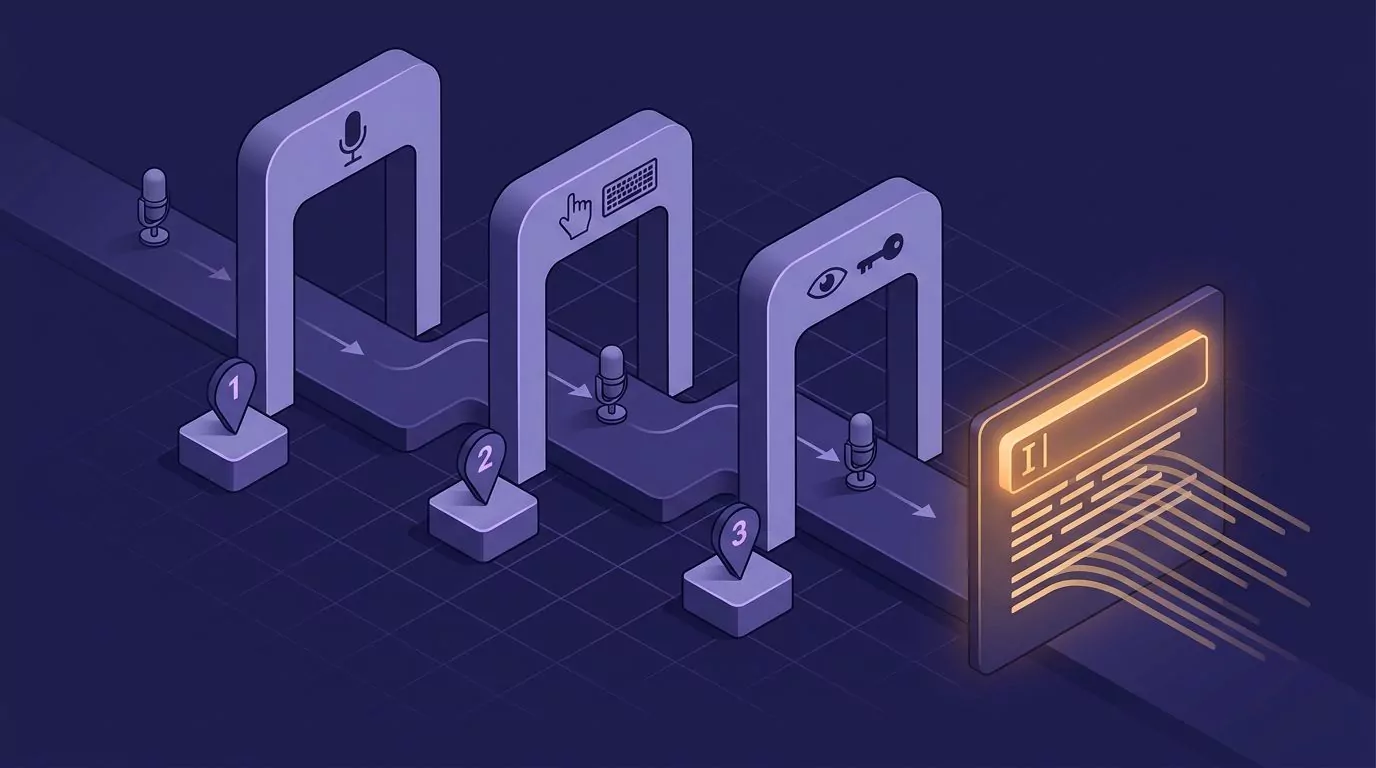
Under the hood, the third gate is an event tap. Apps use Apple's event tap API to watch for a key press system wide. That API is exactly what macOS restricts, which is why the permission exists.
A clean first run looks like this. Install the app. Grant Microphone when asked. Grant Accessibility, then quit and reopen the app, because macOS often needs a relaunch before the change takes effect. Grant Input Monitoring if the app asks. Then pick your shortcut.
Two tips save most of the pain. Choose a shortcut that no app already uses, since a conflict shows up as silence rather than an error. And test in a plain text field first, such as a new note or a browser search box.
If a granted permission still seems ignored, remove the app from that list in System Settings and add it back. Stale permission entries after an app update are a common cause, and a full reinstall is rarely needed.
Where Mac Dictation Stops Working: Secure Input and Password Prompts
Sooner or later, your dictation key does nothing. The app looks fine in the menu bar. Nothing appears. This is almost never a bug.
macOS has a feature called secure input. When a password field is focused, the system stops other apps from watching the keyboard. That protects you from anything logging your password. It also switches off every dictation app on your Mac at the same moment.
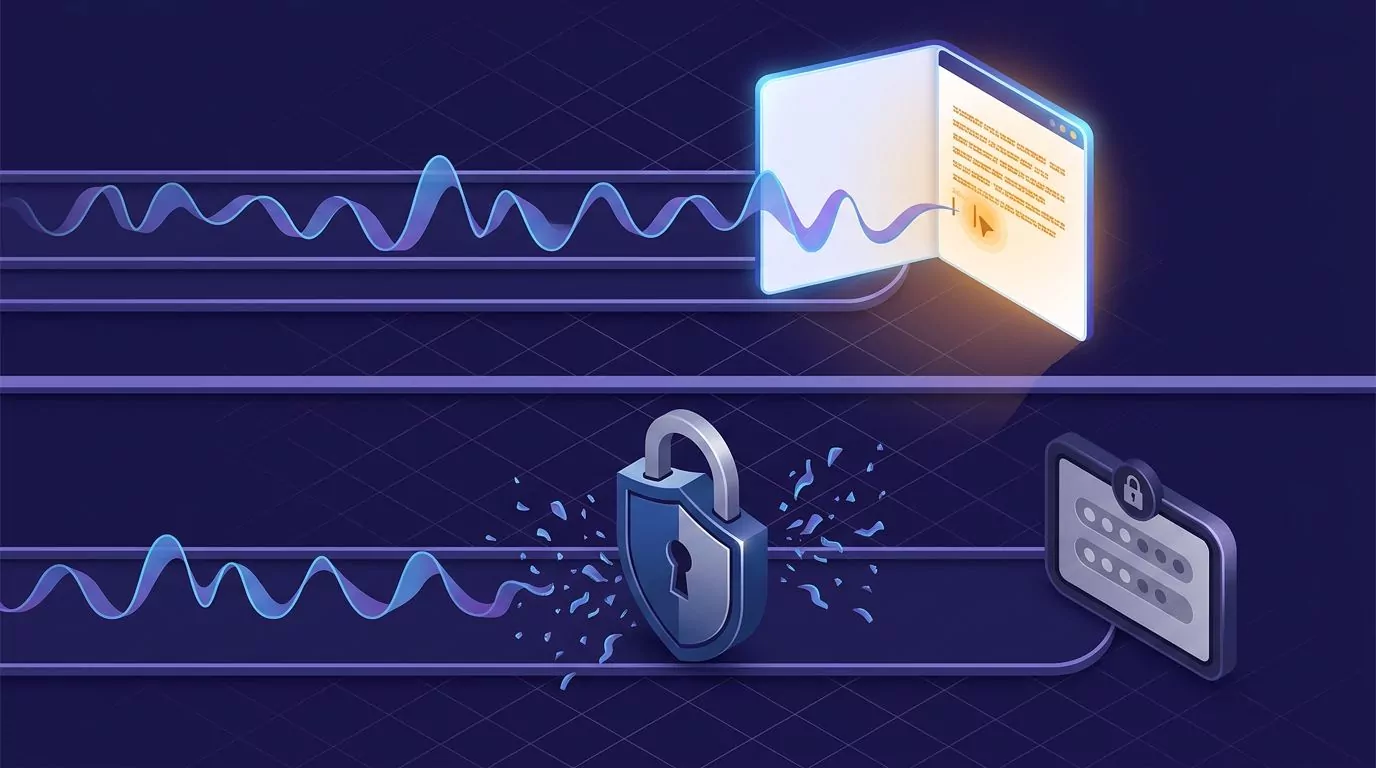
The places it bites are predictable:
- Login and password fields anywhere in macOS, including the lock screen.
- Keychain prompts and system dialogs asking for your account password.
- Password managers while their unlock field has focus.
- A terminal window waiting on a sudo password, or any prompt reading a hidden line.
The terminal case has a sting. Some terminal apps turn secure input on and forget to turn it off. Your dictation key then stays dead in every app until you refocus that terminal and press Return, or quit it. If you spend your day in a shell, the piece on what voice coding actually does well covers where speech helps there and where it does not.
There is no app that beats this, and you should be suspicious of any that claims to. Apple Dictation is blocked too. The workaround is simply to type your password, which is a handful of characters, and dictate everything else.
One nuance worth knowing. Some apps switch from typing simulated keystrokes to pasting from the clipboard when they hit a restricted field. Pasting can land where keystrokes will not. It is a partial escape hatch, not a fix, and it leaves your text on the clipboard.
If You Also Use Windows: What Carries Over and What Does Not
Plenty of people run a Mac at home and a PC at work. Mac only publications rarely mention it, so here is the honest position.
Four of the eight apps here ship a Windows build: Superwhisper, Wispr Flow, Willow and Voibe. VoiceSnap Pro is also planned for both. Apple Dictation, MacWhisper and VoiceInk are Mac only, so on a PC you fall back to the built in Windows tool.
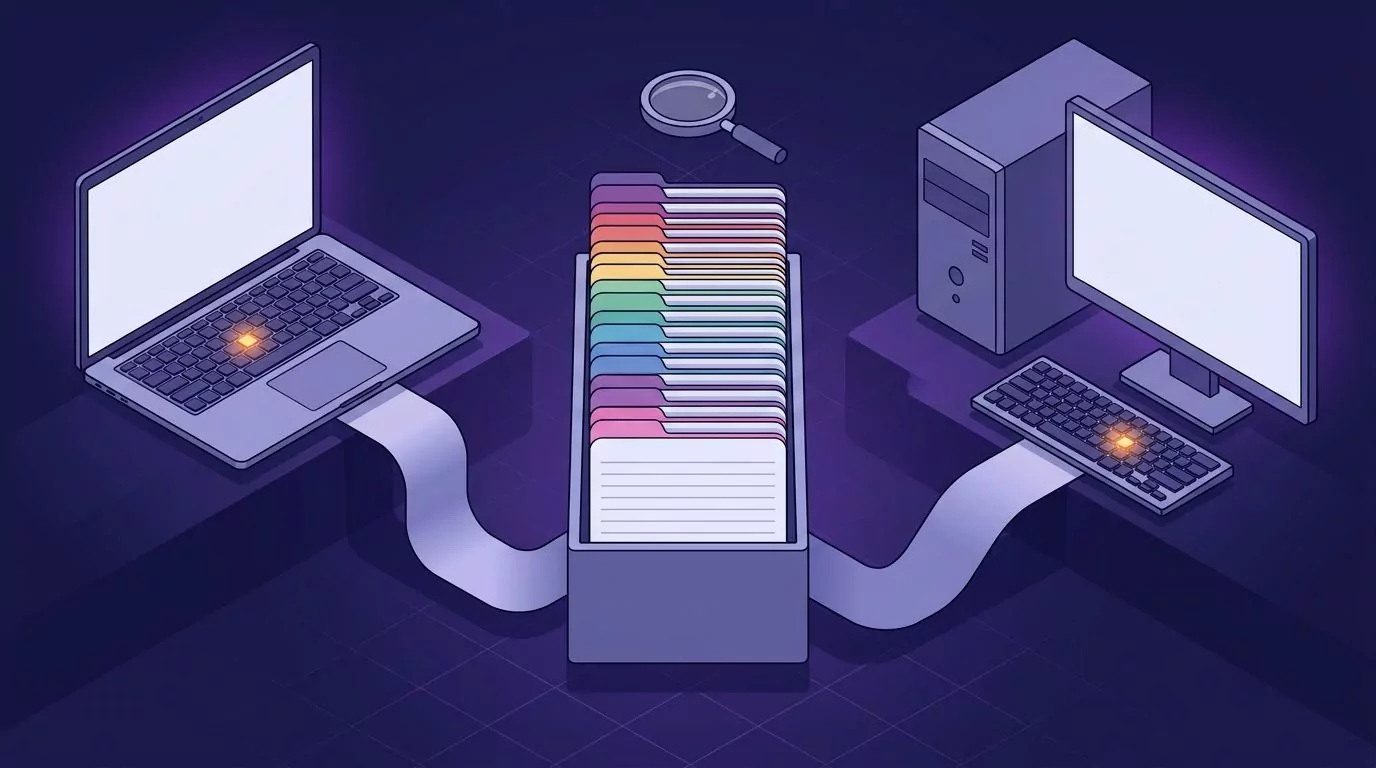
What carries over is the habit. Hold a key, speak a sentence, release. That muscle memory moves between machines fine, and the desk workflow behind it is the same on both, as the guide to talk to text on your computer lays out.
What does not carry over is the detail. Your shortcut is often different, because Fn on a Mac and the Windows key sit in different places. Local processing may not follow either. Voibe is the clearest example: it runs on the device on Apple silicon, but on Windows it runs in a cloud mode instead.
Permissions also work differently. Windows has no equivalent of the Accessibility list you grant on a Mac, so the setup is shorter. It has its own limits instead, which the piece on the Windows dictation shortcut goes through.
One thing to check before you buy for both: whether a licence covers both platforms or only one. Several vendors sell per platform, and a Mac lifetime deal may not include the PC build.
Frequently Asked Questions
What is the best free dictation software for Mac?
Apple Dictation, because it is already installed, costs nothing and stores nothing. For cleaner output at no cost, Wispr Flow gives 2,000 words a week, Willow's free tier is unlimited on its weaker Frontier Mini model, and MacWhisper has a free tier that runs on your Mac. For a genuinely free speech to text app for Mac with no word cap, the built in tool is still the answer.
Does the Mac have a built in dictation tool?
Yes. It lives in System Settings, under Keyboard, then Dictation. Turn it on, pick a shortcut, and it works in any text field. On Apple silicon it can run on the device for supported languages, and it no longer cuts you off after a minute.
What is the difference between Apple Dictation and Voice Control?
Dictation turns speech into text at your cursor. Voice Control drives the whole Mac by voice, including clicking, scrolling and opening apps. Voice Control includes dictation, but it is built for operating the computer hands free, not for writing quickly.
Which macOS permissions does a dictation app need?
Microphone to hear you, and Accessibility to place text into other apps. Apps that listen for a bare modifier key, such as holding Fn, usually need Input Monitoring too. A few request Screen Recording, but only for optional features that read what is on screen.
Why does dictation stop working in password fields and some terminals?
Because macOS turns on secure input, which stops apps from watching the keyboard while a password is being typed. Every dictation app is blocked, including Apple's. Some terminal apps leave secure input switched on by mistake, which kills your shortcut everywhere until you refocus that window and press Return.
Is dictating actually faster than typing on a MacBook?
For most people, yes, though the gap depends on what you write. Speaking runs well ahead of a typical keyboard pace, and the figures in the breakdown of average typing speed show how much headroom that leaves. Editing time eats some of it back, which is why cleanup quality matters more than raw speed when choosing a Mac dictation app.
Which One Should You Pick
Start with Apple Dictation for a week. It is free and it tells you whether the habit suits you at all.
If you want everything local and one payment, take VoiceInk on Apple silicon, or MacWhisper if you also handle audio files. If you want the cleanest prose and cloud processing is fine, take Wispr Flow, or Willow when a stated retention policy matters. If you want a lifetime licence and a flexible key, take Voibe. If you want to tune the tool yourself, take Superwhisper.
If you move between a Mac and a PC and want the words kept rather than gone, VoiceSnap Pro is worth a look. Holding one shortcut on both machines, with every dictation saved as a searchable note, is a different bet from the local first apps above. It is still pre launch, so the waitlist at $39 one time is the only way in for now.