Talk to Text on Your Computer: A Desk Workflow for Mac and Windows
Talk to text on computer means this: you put your cursor in a text field, start dictation with a keyboard shortcut, speak normally, and your words land in that field as typed text. Windows calls it voice typing. macOS calls it dictation. Both are built in, and both are free.
That is the short answer. Setup is the easy part, which is where most guides stop. What decides whether you keep dictating is the rest: which fields refuse the text, why the mic cuts out mid sentence, and where the words go after you hit send.
Talk to text on computer: what it actually does
You will also see this called speech to text or voice typing. Dictation on a desktop is a live input method. The text appears as you speak, in the app you were already using, at the point where your cursor sits. Nothing is uploaded and nothing comes back later.
That makes it a different tool from the two things people confuse it with.
- A transcription service takes a finished audio or video file, processes it, and emails you a document. Useful for interviews and recordings. Useless for answering a message right now.
- A voice assistant listens for commands and does things. Dictation does not interpret. It types what you said.
So the test is simple. If you have to open a separate window, wait, or fetch a file, that is transcription. If the words show up in the box you were already looking at, that is talk to text.
Windows voice typing and macOS dictation, side by side
Both operating systems ship with this already. On Windows, put your cursor in any text field and press Windows key + H. Voice typing in Windows 11 and Windows 10 uses that same shortcut. Microsoft has full steps in its voice typing support guide, including the language packs and the command list.
On a Mac, voice to text stays off until you switch it on. Open the Apple menu, go to System Settings, click Keyboard, then Dictation, and turn it on. Apple explains how to dictate on a Mac, including the shortcut menu and the language options.
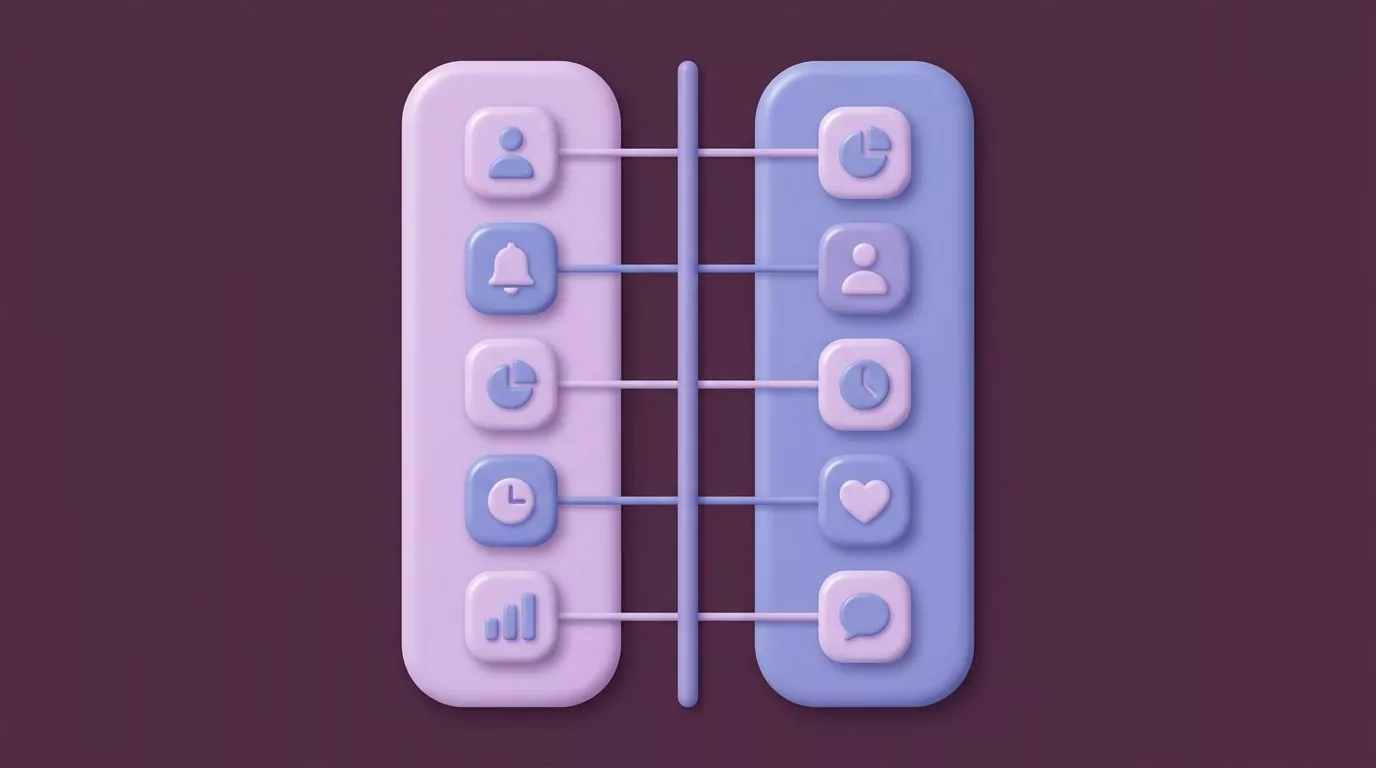
The two behave differently in ways that matter more than the setup steps:
| Behaviour | Windows voice typing | macOS dictation |
|---|---|---|
| How you start it | Windows key + H, in any text field | The Microphone key, or a shortcut you pick in Keyboard settings |
| Toggle or hold | Toggle. It keeps listening until you stop it | Toggle. Press Escape or the shortcut again to stop |
| Punctuation | Automatic punctuation is a setting in the gear menu. You can also say the mark | In supported languages it adds commas, periods and question marks for you. You can also say the mark |
| Silence timeout | Microsoft publishes no fixed number. Saying "stop listening" ends it cleanly | Apple documents it: dictation stops after 30 seconds with no speech |
| Where the text lands | At your cursor, in the app you were already in | At your cursor, in the app you were already in |
| What happens to the text after | Nothing is kept. Once you send or close, it is gone | Nothing is kept. Once you send or close, it is gone |
One section is all the built in tools need here. The vendor pages above cover their own setup steps better than a repeat would.
The copy and paste tax nobody mentions
Search for free voice typing and the top results are browser notepads. SpeechTexter and Speechnotes both work the same way. You open their page, click a microphone button, and speak into their editor.
The dictation part works. The problem is what comes next. Your words are now in a browser tab, and the message you actually wanted to write is somewhere else.
So one action becomes several:
- Leave the app you were working in and open the notepad tab.
- Click the mic, speak, wait for the text to settle.
- Select all of it and copy.
- Click back into Slack, the ticket, or the mail draft.
- Paste, then clean up the line breaks and stray capitals.
Do that once and it is fine. Do it forty times a day and it is a tax.
Two smaller catches come with it. These tools live in the browser, so they cannot help you in a desktop mail client, an IDE, or a ticketing app. And the free tiers usually carry ads.
Dictating straight into the field you are already in
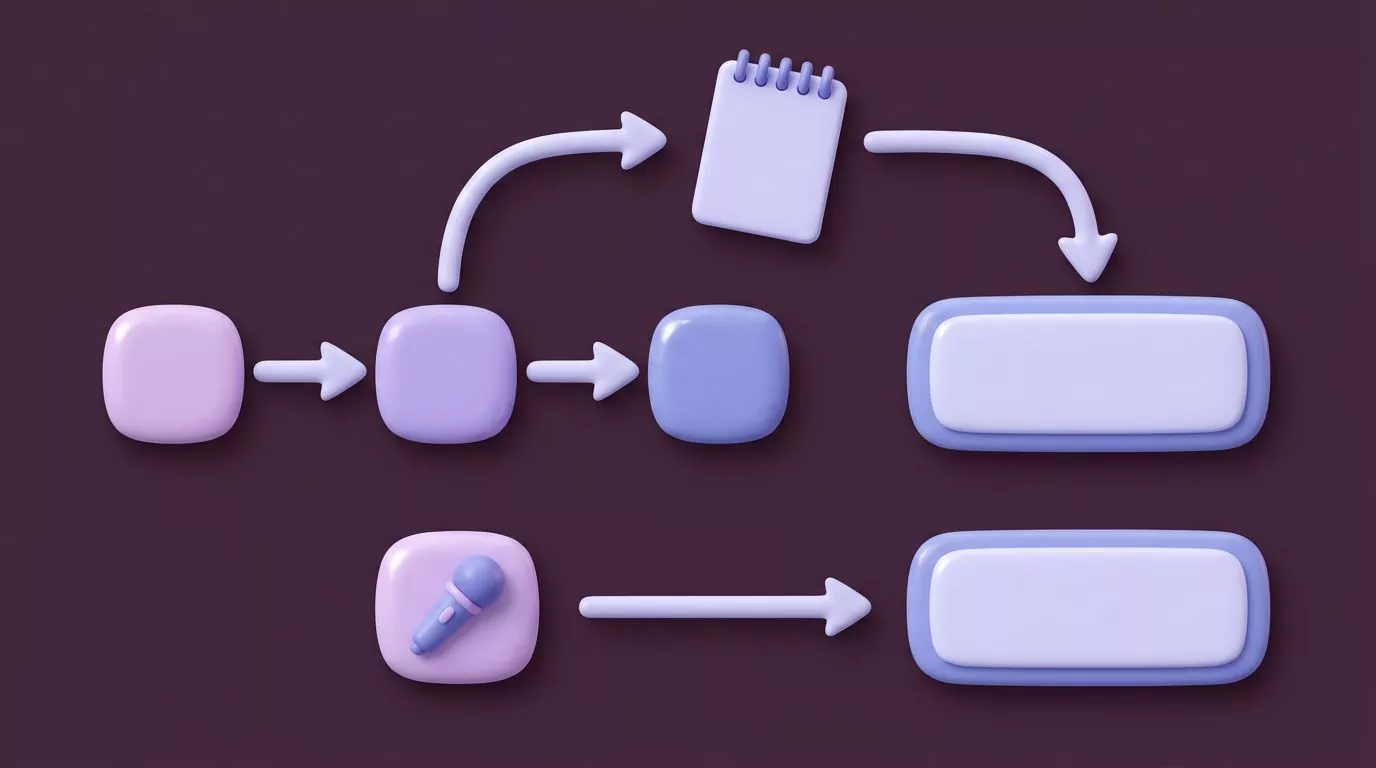
The alternative keeps your cursor where it is. You never leave the app. No second window, no clipboard step.
Here is one loop, start to finish. A teammate asks a question in Slack and you want to answer properly instead of typing "sure, will check".
- Click into the Slack reply box, the same as always. The cursor is blinking there.
- Hold your dictation shortcut. A small indicator shows something is listening. Slack keeps focus.
- Speak your answer at a normal pace. No need to spell out every comma.
- Release the key. The punctuated text appears in the reply box.
- Read it, fix a word if you need to, press Enter.
Hold to talk is the piece the built in tools do not offer. Toggle dictation means two presses and an open mic between them, which is why it catches half of a hallway conversation. Holding a key gives an exact start and an exact stop.
This is the mechanic VoiceSnap Pro is built around on macOS and Windows: pick a shortcut, hold it, speak, release, and formatted text appears at the cursor with filler words like "um" stripped out. Same field, same app, no notepad in between.
Where text fields actually break
Dictation is not equally reliable everywhere. These are the places to expect friction, whichever tool you use.
- Elevated windows on Windows. Apps you launched as administrator run at a higher trust level. Windows blocks normal programs from sending input into them. This is an operating system rule, not a bug in any one app, and it applies to every input tool equally.
- Password fields. Many refuse synthetic input outright. More to the point, never say a password out loud. Type those.
- Terminals. Text usually lands fine, but there is no gentle undo in a shell. One misheard word can become a command you did not mean to run. Dictate into a note first, read it, then paste.
- Some Electron app windows. Apps like Slack, Notion and Discord draw their own text areas rather than using native ones. Insertion normally works, but the caret can jump if the app is still rendering when the text arrives.
- Canvas style editors. A few web editors paint text on a canvas instead of using a real input. Nothing has a cursor to insert into, so nothing appears.
- Remote desktop and virtual machine windows. The dictation runs on your machine. The text field lives on another one. Results vary by client.
A quick rule covers most of it. If you can click into it and type, dictation almost certainly works. If typing itself feels odd there, dictation will feel odder.

Three work examples, written out
Speed claims are hard to feel. It helps more to see what goes in and what comes out.
A Slack reply
What you say: "yeah that works for me can we push the review to thursday morning I want to get the pricing table finished first"
What lands in the reply box: "Yeah, that works for me. Can we push the review to Thursday morning? I want to get the pricing table finished first."
Roughly nine seconds of speech. The capitals, the comma and the question mark were not spoken.
A ticket note
What you say: "customer is on the annual plan seat count went from twelve to twenty last week billing did not update um I have refunded the difference and flagged it for the billing team"
What lands in the ticket: "Customer is on the annual plan. Seat count went from twelve to twenty last week and billing did not update. I have refunded the difference and flagged it for the billing team."
Note what happened to the "um". Good dictation tools drop filler words rather than typing them.
An email reply
What you say: "hi maria thanks for sending the deck over I have two comments on slide four the revenue split looks off and we should probably add a source line under the chart happy to jump on a call tomorrow if easier"
What lands in the draft: "Hi Maria, thanks for sending the deck over. I have two comments on slide four. The revenue split looks off, and we should probably add a source line under the chart. Happy to jump on a call tomorrow if easier."
Research on speech input is usually run on phones rather than desktops. One widely cited 2016 study from Stanford and Baidu measured English speech input at around three times the speed of a phone keyboard. Read that as general research on speech versus typing, not as a benchmark for any particular desktop app.
What happens to the text after you send it
Here is the gap the whole first page of results ignores. You dictate a careful three sentence answer into Slack, you send it, and it is gone. Not deleted, just scattered.
Think about a normal Tuesday. You explained a refund policy in a ticket, wrote a status update in Slack, and drafted a paragraph of an email you never sent. That is three good pieces of writing sitting in three different systems, none of them searchable together.
Next week you need that refund wording again. You know you wrote it. You do not know where.
This is why an automatic notes library matters more than it sounds. VoiceSnap Pro saves every dictation as a note, tagged with the app you dictated into and the time. Notes group by day and by app, so "Slack on Tuesday" is a thing you can actually browse, and full text search works on any phrase you said rather than on a filename you never set. Notes export as plain text or Markdown when a fragment needs to become a document.
One thing worth saying plainly, because it is the first question people ask. The audio is transcribed and then discarded. Only the text notes remain, so there are no recordings kept and no playback.

A shortcut cheat sheet for voice typing
Everything you need on one screen.
| Action | Windows | macOS |
|---|---|---|
| Start dictation | Windows key + H | The Microphone key, or your chosen shortcut |
| Stop dictation | Say "stop listening", or close the panel | Escape, the Microphone key, or the shortcut again |
| Open the dictation menu | Windows key + Alt + H | Edit menu, then Start Dictation |
| Turn the feature on the first time | Just press Windows key + H in a text field | System Settings, Keyboard, Dictation, then Enable |
| Change the shortcut | No option in the voice typing settings panel | Keyboard, Dictation, Shortcut menu, or Customize |
| Add punctuation by voice | Say the mark, such as "question mark" | Say the mark, such as "exclamation mark" |
| Turn automatic punctuation on or off | Gear icon in the voice typing panel | Keyboard, Dictation, punctuation setting |
Troubleshooting when nothing appears
Nothing is inserted at all
Check the cursor first. Dictation needs a live text field with a blinking caret, and a single click somewhere in the window is not always enough. Then check the microphone permission, which is per app on macOS and under Privacy settings on Windows.
If both look right, try a browser address bar. If text appears there but not in your target app, the problem is that app.
The wrong app gets the text
Focus moved between the moment you started speaking and the moment the text arrived. A notification banner, a chat popup, or an app finishing its startup will do it. Click into the field, wait a beat, then start dictating.
Dictation stops mid sentence
Usually a silence timeout. macOS ends dictation after 30 seconds with no speech, and Windows closes its panel after a stretch of quiet too. Long thinking pauses read as silence.
If it cuts out after every few words instead, that is a microphone problem. Input level too low, a headset switching profiles, or another app holding the mic.
The mic indicator stays on
A toggle style tool is still listening because you never told it to stop. Say "stop listening" on Windows, or press Escape on a Mac. If the indicator survives that, quit and reopen the app that has the mic, since a stuck audio session usually clears on restart.
Frequently Asked Questions
Is talk to text on a computer free?
Yes, if you use what is already installed. Windows voice typing and macOS dictation cost nothing and need no account. Paid dictation software for Windows and macOS exists for hold to talk shortcuts and saved notes, which the built in options do not offer.
Does talk to text work in any app, or only in a browser?
Built in dictation works system wide, so it reaches desktop apps as well as web pages. Browser based voice typing notepads only work inside their own tab, and you copy the result out yourself. That difference is the whole reason to prefer one over the other.
Why does my computer stop listening after a few seconds?
Silence timeouts. Apple documents a 30 second cutoff on macOS, and Windows closes its panel after a similar quiet stretch. A hold to talk shortcut avoids this, because the mic is open only while your finger is on the key.
Do I have to say the punctuation out loud?
Not usually. Both platforms add commas, periods and question marks automatically in supported languages, and you can turn that off if you prefer to speak every mark. Saying the mark by name still works either way, which is handy for colons and brackets.
Is talk to text accurate enough for work email?
For everyday replies, yes, with one habit attached: read before you send. Accuracy drops with background noise, heavy accents in an unsupported language setting, and unusual product names. Treat it as a fast first draft rather than a finished one.
Where to start this week
Try the built in option first. Press Windows key + H, or switch on Dictation in Mac Keyboard settings, and spend a day answering messages by voice. You will learn which of your daily apps behave and which ones fight back.
If the toggle mic and the vanishing text start to annoy you, that is the point where a dedicated tool earns its place. VoiceSnap Pro is still pre launch, with a waitlist and $39 one time early access, so it is a list to join rather than a download today. Worth a look if holding one key beats typing every reply.