How to Dictate on a Mac in Any App: Setup, Shortcuts, and Fixes

To dictate on a Mac, open the Apple menu, then System Settings, then Keyboard. Turn on Dictation and pick a shortcut. Put your cursor in any text field. Press the shortcut, speak, and your words appear at the cursor. Press Escape or the shortcut again to stop.
That is the short answer. The longer answer is why it sometimes fails. This guide covers how to dictate on Mac in every app you already use. It also covers the command list, the timeout, the permissions, and the fixes.
Most people type around 40 words a minute. Most people speak at more than three times that rate. That gap is the whole reason to learn this.
How to dictate on Mac: turn on dictation in System Settings
Dictation ships with macOS. You do not have to install anything. You just have to enable dictation once.
- Click the Apple menu in the top left corner. Choose System Settings.
- Click Keyboard in the sidebar. Scroll down to the Dictation section.
- Turn Dictation on. macOS may ask you to confirm. Click Enable.
- Pick your language from the Languages menu. You can add more than one.
- Choose a shortcut from the Shortcut menu. This is the key you press to start.
- Check the Microphone Source menu. Automatic works for most people.
The first time you turn it on, your Mac may download a language file. That takes a minute or two. Wait for it to finish before you test.
On macOS Monterey and earlier, the panel lives in System Preferences instead of System Settings. The path is the same after that: Keyboard, then Dictation.
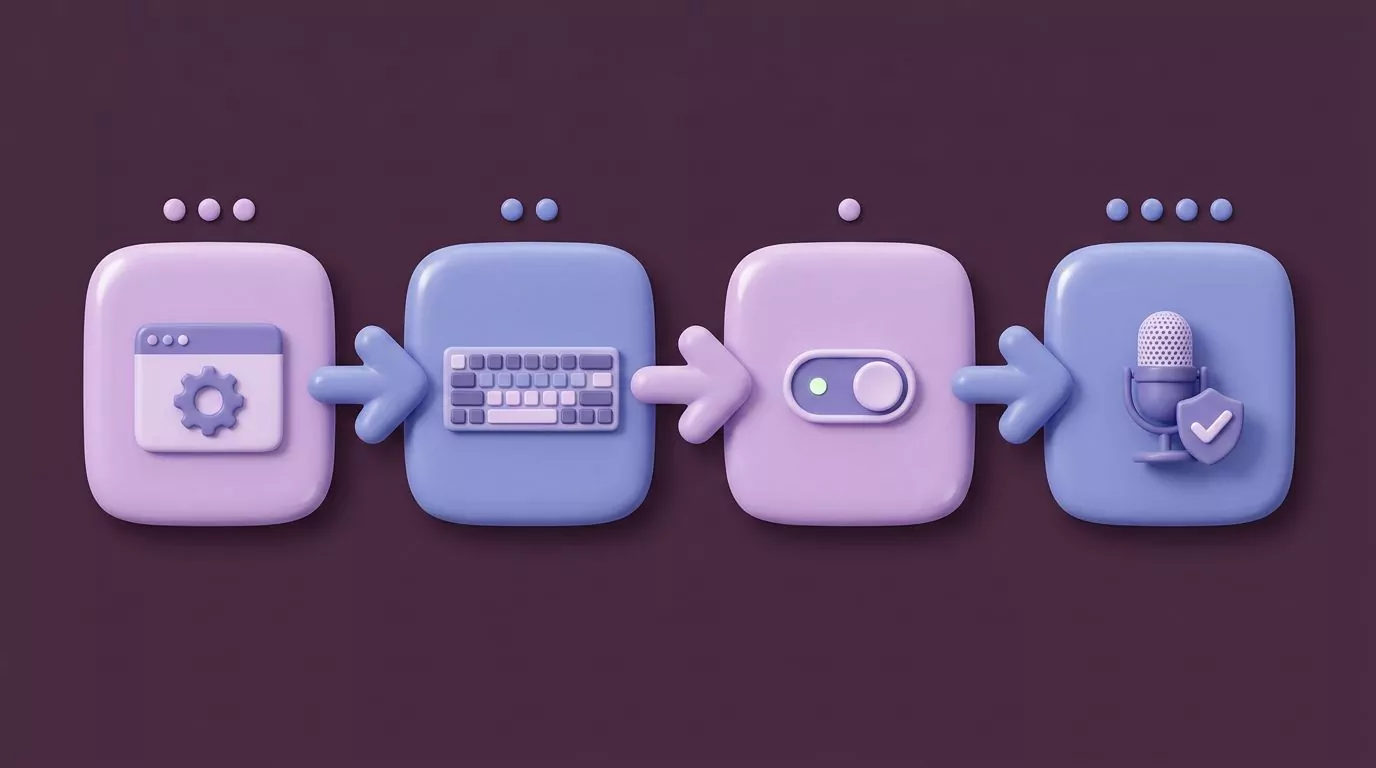
Apple documents this panel in its own guide to dictating messages and documents on Mac. It is short, but it is the canonical source for the menu names.
Dictate in any text field, not just in Pages
This is the part most guides skip. You can use dictation on Mac almost anywhere. Mac voice to text is a system service, not a feature of one app. It types into whatever field has your cursor.
The mechanic is always the same. Click into a text field so the cursor blinks. Press your shortcut. Speak. The words land at the cursor.
One habit makes it reliable. Click the field first, then press the shortcut. If you press the shortcut before the cursor is placed, macOS listens with nowhere to put the words.
Here is what that looks like in real apps:
- Mail: start a reply, click in the body, then dictate the whole message.
- Notes: open a note and dictate straight into it. This is the best place to test.
- Slack: click the message box in a channel and dictate your update.
- Safari or Chrome: click into a web form, a search box, or a comment field.
- Pages: use the shortcut, or use the Edit menu and choose Start Dictation.
Many Apple apps also list Start Dictation under the Edit menu. That is a second way in, not a different feature. Both routes use the same engine.
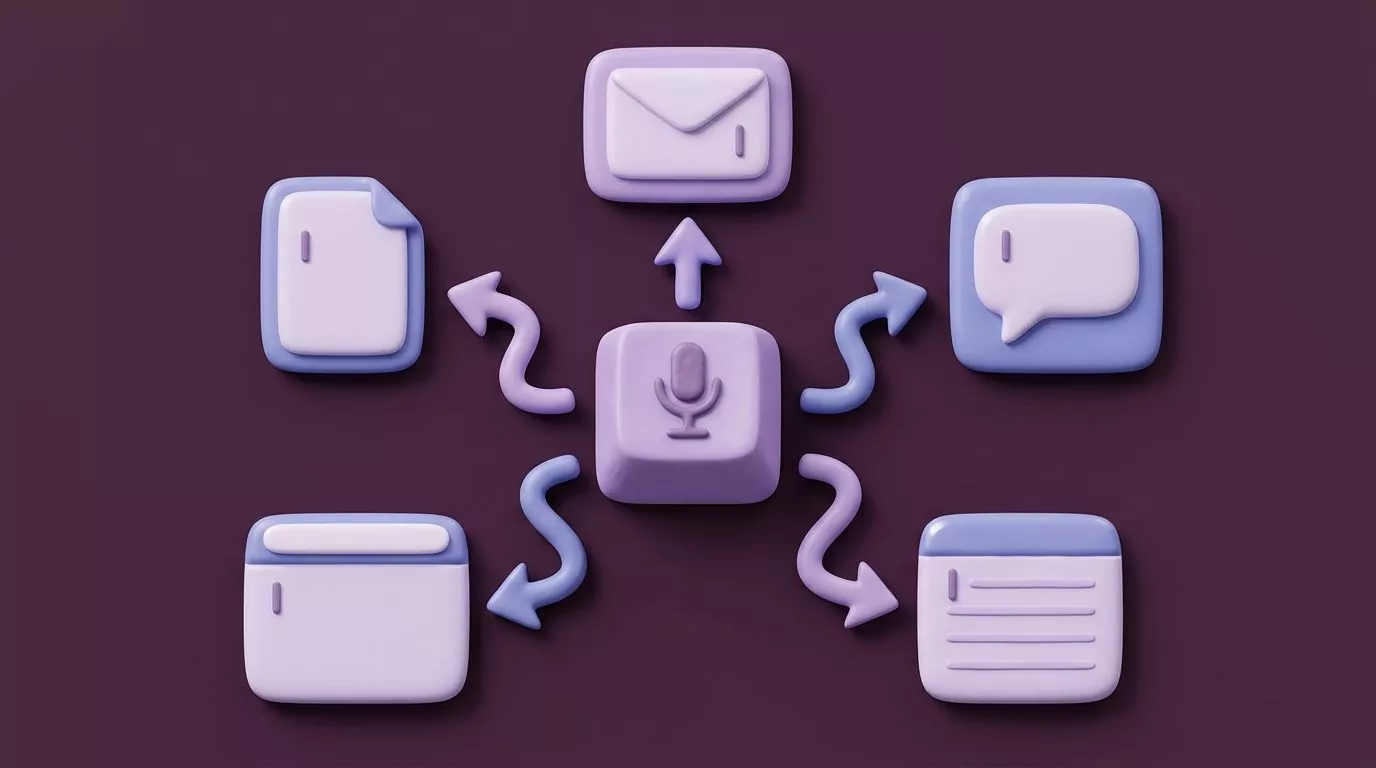
One real limit: secure text fields block dictation. Password boxes are the obvious case. Some terminal apps also switch on secure input, and dictation goes quiet there too.
The dictation shortcut on Mac, and how to change it
The Shortcut menu sits right under the Dictation toggle. Open it and you get a short list of choices.
- Press the microphone key, if your keyboard has one. It is often F5.
- Press Control twice.
- Press the right or left Command key twice.
- Press the Globe key twice. This is the Fn key on many Macs.
- Customise, which lets you record any key mix you like.
- Off, which leaves dictation on but removes the hotkey.
Pick something you will not hit by accident. Double taps on Control and Command are fast, but they fire during normal work. If you keep triggering it by mistake, use Customise and set something odd, such as Option and Z.
Give yourself a week with one shortcut before you change it again. Dictation only pays off once the key is automatic. Swapping it every few days keeps you thinking about the app instead of the sentence.
The shortcut is a toggle. Press it once to start listening and once more to stop. Escape also stops it. There is no hold to talk option in the built in dictation.
MacMost has a good walkthrough of both dictation modes if you want to see the panel on screen. The video below covers the same ground in a few minutes.
The Mac dictation commands and punctuation cheat sheet
No page on the first results page has a full list. Here is one. Say the words in the left column out loud while dictating.
One thing to know first. On supported languages, macOS adds commas, periods, and question marks for you. That is the Auto punctuation setting in the Dictation panel. Turn it off if you would rather say every mark yourself.
| What you say | What you get | Notes |
|---|---|---|
| period | . | Works in keyboard dictation everywhere. |
| comma | , | Works in keyboard dictation everywhere. |
| question mark | ? | Works in keyboard dictation everywhere. |
| exclamation mark | ! | Works in keyboard dictation everywhere. |
| colon | : | Works in keyboard dictation everywhere. |
| semicolon | ; | Works in keyboard dictation everywhere. |
| apostrophe | ' | Useful when a name is not in the dictionary. |
| quote / end quote | " " | Say both halves to close the pair. |
| open parenthesis / close parenthesis | ( ) | Say both halves to close the pair. |
| hyphen | - | Handy for compound words. |
| new line | one Return | Same as pressing Return once. |
| new paragraph | two Returns | Same as pressing Return twice. |
| tab key | a tab | Good for lists and forms. |
| caps on / caps off | Title Case Run | Wraps a run of words in capitals. |
| all caps | NEXT | Applies to the next word only. |
| no space on / no space off | joinedwords | Useful for handles and file names. |
| at sign | @ | Say it letter by letter for email. |
| dollar sign, percent sign, ampersand | $ % & | Say the symbol name, not the shape. |
| smiley face, frowny face, winky face | emoticons | Available in supported languages. |
| select all, delete that, bold that | editing actions | Voice Control only, not keyboard dictation. |
That last row matters. Keyboard dictation writes text. It does not edit text. To say "delete that" or "click Send" you need Voice Control, which is a separate feature under the Accessibility settings. Apple keeps the full list on its commands for dictating text page.
On device and server based dictation, and why two Macs differ
Two Macs can run the same macOS and behave differently. The reason is where the audio is processed. There are two paths.
On device. Apple silicon Macs, meaning M series chips, can run dictation locally for many languages. Nothing leaves the machine. It works with the Wi-Fi off, and there is no cap on how long you can talk.
Server based. Intel Macs, and any language that lacks a local model, send audio to Apple. That needs a live internet link. Sessions are shorter and there is a slight delay before text appears.
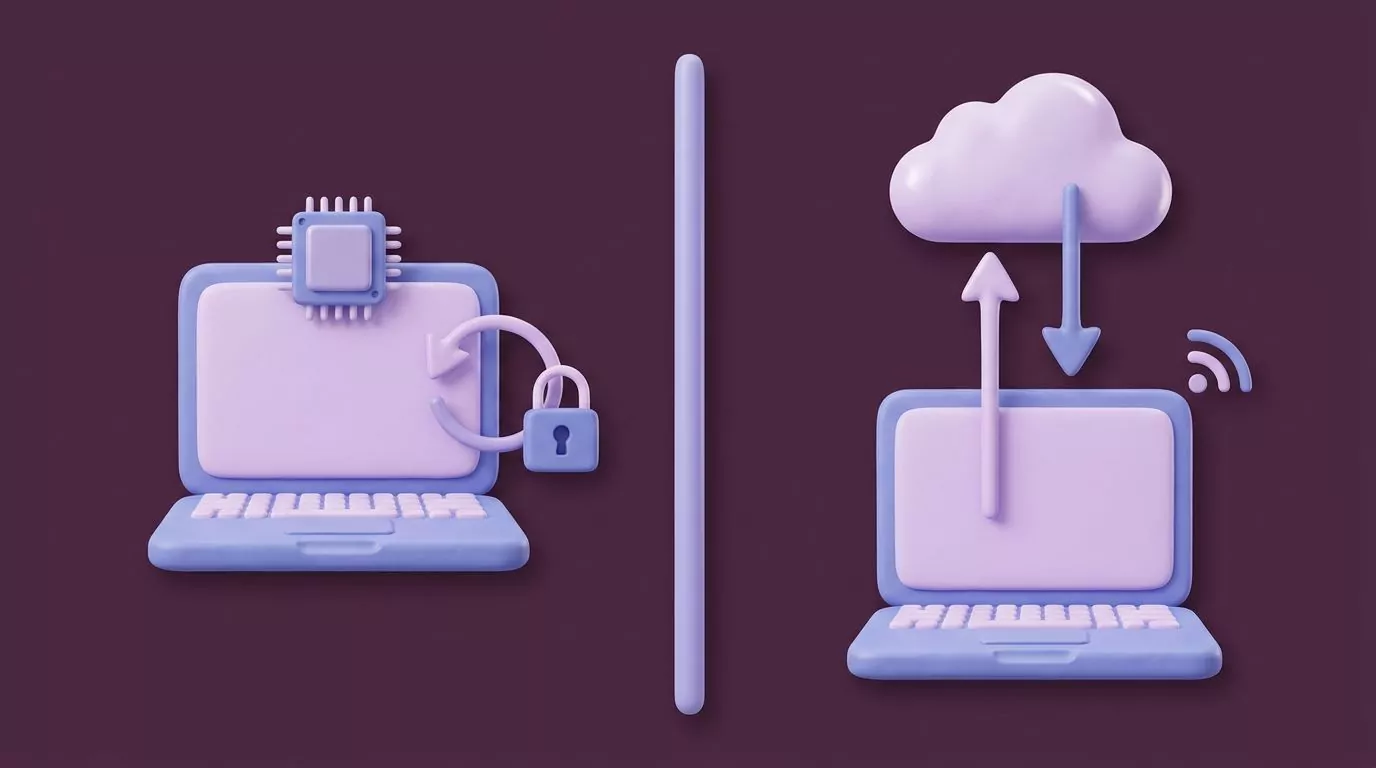
You can check which one you have. Open the Dictation panel and look under the Languages menu. macOS marks the languages it can handle on device.
This single difference explains a lot of forum threads. Your colleague dictates for ten minutes on an M3 MacBook. You get cut off after a minute on an older Intel machine. Neither of you is doing anything wrong.
Why Mac dictation stops after a while
This is the most common complaint, and almost nobody explains it. There are two separate timers, and people mix them up.
The first is the silence timer. If your Mac hears no speech for about 30 seconds, it ends the session on its own. This is by design. There is no setting to extend it.
The second is the session limit, and it only applies to server based dictation. If your audio goes to Apple, the session is capped. On device dictation has no such cap.
Three practical fixes:
- Do not pause to think with the mic live. Stop, think, then start again.
- Draft in short bursts. One paragraph per session is a good rhythm.
- If a local model exists for your language, add it. That removes the session cap.
If dictation cuts off mid sentence and the text you already said stays put, that is the timer, not a bug. Press the shortcut again and carry on.
Microphone and Accessibility permissions, app by app
Dictation working in Notes but not in your browser is almost always a permissions issue. Two panels control this, and they do different jobs.
Microphone. Go to System Settings, then Privacy and Security, then Microphone. This lists every app that has asked to listen. Check that the app you want is switched on.
Accessibility. Same path, but choose Accessibility. This one grants an app the right to control other apps, which includes typing into them. Built in dictation does not need it. Any third party dictation tool does.
There is a third panel worth knowing: Input Monitoring. Tools that watch for a global hotkey need it. If a shortcut does nothing at all, this is often why.
Permissions are granted per app, not once for the whole Mac. Quit and reopen an app after you change a toggle. The change does not always apply to a running app.
How to turn off dictation on a Mac
Go back to System Settings, then Keyboard, then Dictation. Switch the toggle off. That is the whole job.
Often you do not want it off, though. You want it to stop firing by accident. Set the Shortcut menu to Off instead. Dictation stays available from the Edit menu, but no key combination will trigger it.
If your Mac keeps opening the mic during games or calls, the culprit is usually a double tap shortcut. Control twice and Command twice both get pressed by accident. Switch to a custom combination.
Mac dictation not working: symptoms and fixes
Work down this list in order. Each step rules out one cause.
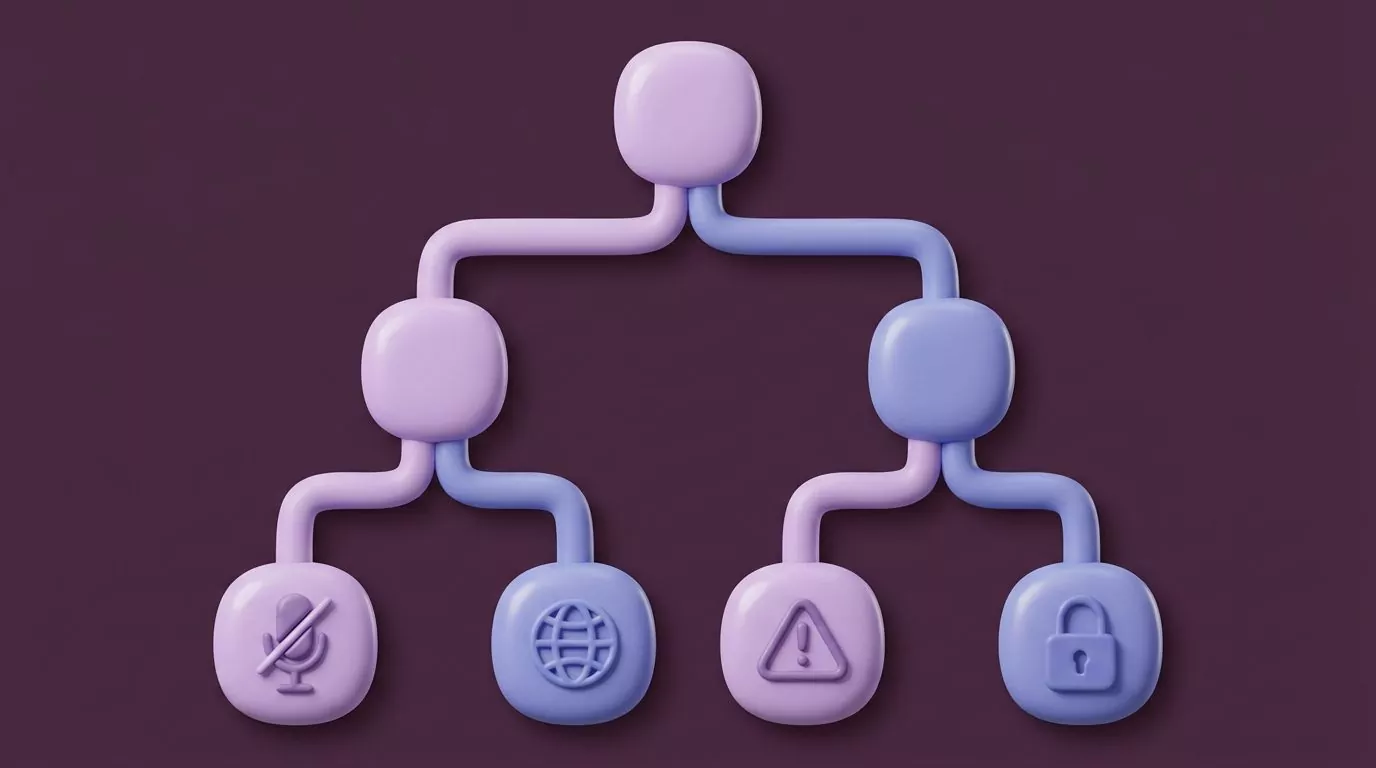
- No text appears at all. Test in Notes first. If Notes works, the problem is the other app, not dictation.
- The shortcut does nothing. Reopen the Dictation panel and confirm the Shortcut menu is not set to Off. Another app may also have claimed the same keys.
- The mic is not detected. Change Microphone Source from Automatic to your actual mic by name. A connected headset often steals the input.
- The wrong language comes out. Check the Languages menu. If you added two, click the language name near the cursor to switch during a session.
- It works in Notes but not in a browser. Open Privacy and Security, then Microphone, and switch the browser on. Then restart the browser.
- Dictation is greyed out. A device management profile can lock it. Work Macs often ship this way. Ask your IT team.
- Nothing helps. Turn Dictation off, restart the Mac, then turn it back on. This forces the language file to re download.
One more that trips people up. Microsoft Word has its own Dictate button, which is a separate service with its own rules. If that button fails, macOS dictation may still work fine in the same document.
What happens to what you dictated
Nothing. That is the honest answer, and it cuts both ways.
macOS dictation writes text into the field and then forgets it. There is no log, no transcript file, and no history panel. If you dictate a long reply and close the window without sending, the words are gone.
On privacy, that is a good default. On recall, it is a real cost. The message you dictated into Mail on Tuesday is only findable if Mail happened to save it.
There is a simple workaround if you rely on recall. Dictate into a note first, then copy the text where it needs to go. It is one extra step, but the draft survives.
Apple can also ask to keep audio samples to improve Siri and Dictation. That is opt in. You can decline it, and change it later under Privacy and Security, in Analytics and Improvements.
Frequently Asked Questions
How do I turn on dictation on a Mac?
Open the Apple menu, choose System Settings, then click Keyboard. Scroll to Dictation and switch it on. Pick a language and a shortcut while you are there. On macOS Monterey and earlier, use System Preferences instead.
What is the keyboard shortcut for dictation on a Mac?
There is no single fixed one. macOS offers the microphone key, Control twice, either Command key twice, or the Globe key twice. You can also record your own under Customise. Set it to Off to stop accidental triggers.
Why does Mac dictation stop after a few seconds?
Your Mac ends a session after roughly 30 seconds with no speech. Server based dictation also caps how long one session can run. Speak in shorter bursts, or add a language that runs on device.
Does Mac dictation work without an internet connection?
On Apple silicon Macs it usually does, for languages with a local model. Intel Macs and unsupported languages send audio to Apple, so those need a connection. Check the Languages menu to see which applies to you.
Why is dictation not working in one particular app?
Usually a permission or a secure field. Open Privacy and Security, then Microphone, and switch that app on. Password boxes and some terminals block dictation on purpose, and no setting changes that.
What are the dictation commands on Mac for punctuation?
Say the name of the mark, such as "period", "comma", or "question mark". Say "new line" for one Return and "new paragraph" for two. Editing commands like "delete that" need Voice Control, not keyboard dictation.
When built in dictation is not quite enough
Apple dictation is free, system wide, and good. For a lot of people it is all they need. Learn it first before you buy anything.
Three gaps show up once you dictate every day. You toggle a shortcut instead of holding one. You say punctuation out loud. And nothing you said is kept.
VoiceSnap Pro is built around those three. You hold one shortcut of your choosing and release it, and the text appears at the cursor in any app that accepts typed text. The text arrives already capitalised, punctuated, and broken into paragraphs, with fillers like "um" removed, so the cheat sheet above stops being homework. Every dictation is also saved as a searchable note, tagged with the app and the time, so that Tuesday reply in Mail is still findable on Friday.
The honest limits: audio is transcribed and then discarded, so there are no recordings and no playback. It runs on macOS and Windows only, with no mobile app. And it is pre launch right now, with $39 one time early access through the waitlist.
If holding one key sounds better than saying "new paragraph" out loud, you can join the VoiceSnap Pro waitlist for early access. If it does not, the setup at the top of this page costs nothing and works today.