The Windows Dictation Shortcut: What Win+H Does, Where It Stops, and Hold to Talk Alternatives
The windows dictation shortcut is Windows key + H. Press it with your cursor in any text box and voice typing starts listening. It is a toggle, not a hold to talk key. It stops on its own after a stretch of silence, and it types into whatever field has focus.
That last sentence is where most guides stop. This one keeps going, because the parts that trip people up are the parts nobody writes down.
What the Windows Dictation Shortcut Does When You Press It
Windows key + H turns on voice typing. Microsoft lists it in the official Windows keyboard shortcut list as "open voice dictation". The same keyboard shortcut for dictation works in Windows 11 and in Windows 10.
Here is what happens on screen, in order:
- Put your cursor in a text box first. If no text box has focus, the text has nowhere to land.
- Press Windows key + H.
- A small bar floats near the bottom of the screen. It has a microphone button and a gear icon.
- Wait for it to say it is listening. Words spoken before that point are lost.
- Speak. Text shows up at your cursor in the app you were already in.
- Say "stop listening", or press the microphone button, or press Windows key + H again.
The first run is slower than the rest. Windows may fetch a speech pack for your language before it will write anything, and that download needs a moment. Once it is done, later sessions open in about a second.
Two things about that bar matter. It is a separate window, but your target app keeps the text cursor, so your words still land in the right field. And the gear icon is the only way into the settings, which we come back to later.
Voice typing needs three things: a working microphone, an internet connection, and a text field. Microsoft sends your speech to its own online speech service, so an offline laptop gets you nothing. Some managed work or school accounts have online speech recognition switched off by policy. If that is your setup, ask your admin before you spend an hour on fixes.
Toggle Versus Hold To Talk: Why Win+H Keeps Cutting You Off
This is the single most useful thing to know about windows dictation, and almost nobody says it plainly. Windows key + H is a toggle. You press once to start and press again to stop. There is no key you can hold.
A toggle sounds harmless. In practice it creates a problem, because voice typing also stops listening by itself when you go quiet. Microsoft's own docs give you a way to stop on purpose. They do not give you a way to stop it stopping.
Think about how you actually talk when you write. You say half a sentence. You stop. You pick a better word. You carry on. That pause is normal, and it is exactly what a silence timer reads as "done".
So the loop goes like this. You speak. You pause to think. The mic quietly switches off. You keep talking into a dead mic. You notice, reach back for Windows key + H, and start over. Now you are managing the tool instead of writing.
Users on the Microsoft Learn Q and A boards ask about this often. The advice that comes back is to press Windows key + H again for each new burst. There is no setting to keep the mic open forever, and no built in hold to talk mode.
Two things soften it. Turn on the voice typing launcher so the mic bar stays on screen after a session ends, which makes restarting a click instead of a chord. And keep your bursts short on purpose. One sentence at a time works better than one paragraph at a time.
Neither is a fix. They are ways to live with a design choice. That is worth saying out loud, because a lot of people decide their microphone is broken when the tool is simply doing what it was built to do.
Windows Voice Typing Versus Voice Access Versus Windows Speech Recognition
Windows has shipped three speech systems, and they overlap enough to confuse almost everyone. Search for a command list and you can easily end up reading the rules for a tool you are not running.
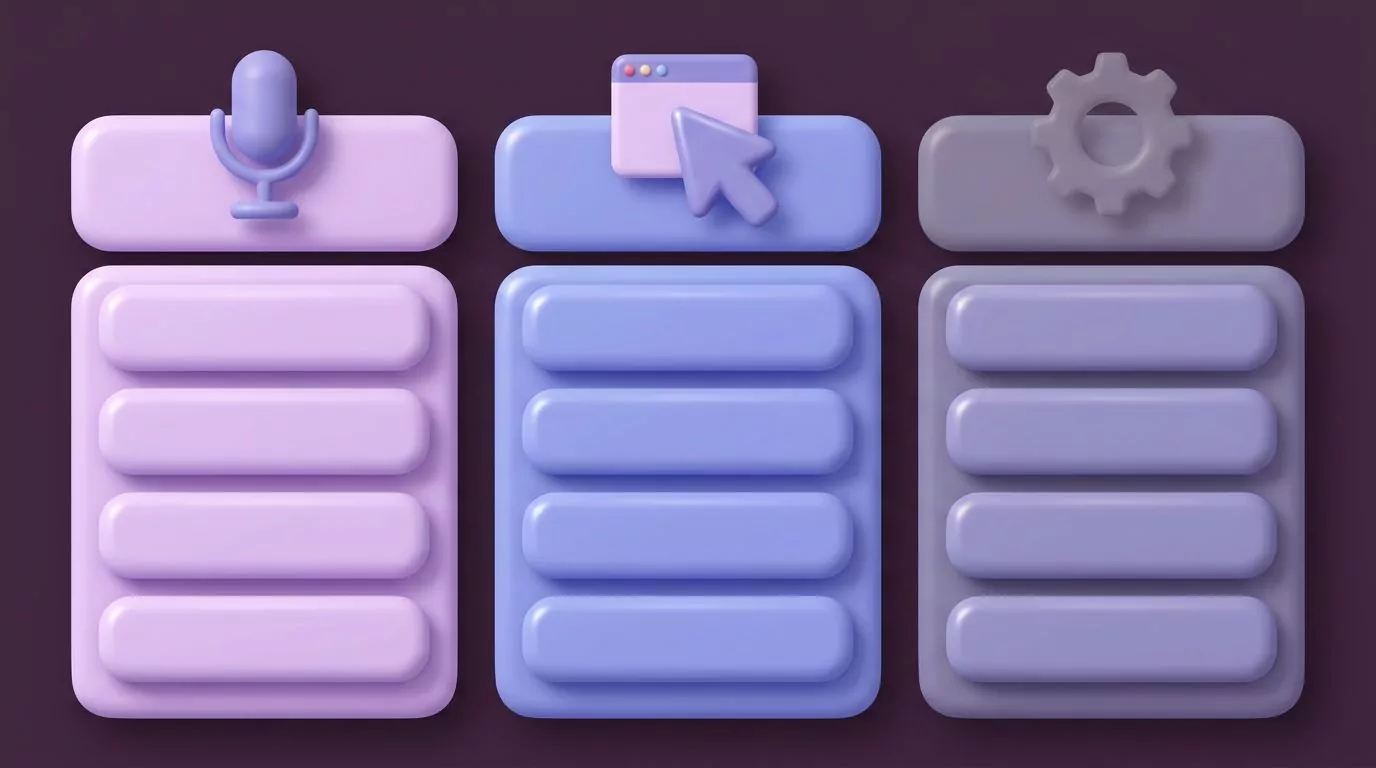
Here is the split in one table.
| Voice typing | Voice access | Windows Speech Recognition | |
|---|---|---|---|
| What it is for | Typing text by voice | Typing text and driving the whole PC | The old tool that did both |
| How you start it | Windows key + H | Settings, then Accessibility, then Speech | Retired on current builds |
| Its own shortcuts | Windows key + Alt + H for the menu | Alt + Shift + C for the mic, Alt + Shift + B for sleep | None you should rely on |
| Can it click buttons | No | Yes | Yes |
| Needs internet | Yes | No, it runs on the device | No |
| Windows versions | Windows 11 and Windows 10 | Windows 11 version 22H2 and later | Older builds only |
| Which command list applies | The voice typing page | The voice access command list | The old speech recognition list |
A few notes on that table.
Voice typing is the quick one. Cursor in a field, press the keys, talk, text lands. It cannot press a button or open an app for you.
Windows voice access is the bigger tool. It can open apps, click things, scroll pages and move the cursor by voice. It runs on the device, so it works with the network off. It has three modes: a default mode that mixes commands and text, a commands only mode, and a dictation only mode. It needs Windows 11 version 22H2 or newer.
Windows Speech Recognition is the legacy one. Microsoft says voice access replaced it on Windows 11 version 22H2 and later back in September 2024. Its command page is still online, which is the root of most of the confusion.
The Cross Referenced Command And Punctuation Cheat Sheet
Now the correction that saves the most time. The long command list many people find is the Windows Speech Recognition command page, and it now sits under the voice access part of Microsoft's site. It does not mention Windows key + H once.
So if you press Windows key + H and then try "correct that" or "go to the end of the line", nothing happens. The command is real. It just belongs to a different tool.
This table marks which spoken phrases work where.
| What you say | Voice typing (Win+H) | Voice access |
|---|---|---|
| "Comma", "period", "question mark" | Yes | Yes |
| "Open quote", "close quote" | Yes | Yes |
| "New line", "new paragraph" | Yes | Yes |
| "Delete that" | Yes | Yes |
| "Press enter", "press backspace", "press tab" | Yes | Yes |
| "Stop listening" | Yes | Use "voice access sleep" instead |
| "Correct that" to fix a misheard word | No | Yes |
| "Go to the end of the line" | No | Yes |
| "Open Outlook" and other app launches | No | Yes |
| "Click send" and other button presses | No | Yes |
| "Show numbers", "mouse grid" | No | Yes |
| "Scroll down" | No | Yes |
One caution. Microsoft publishes these phrases per language, and the wording shifts between languages. If you dictate in something other than English, check the exact phrases on the voice typing page and the voice access command list for your language.
The pattern underneath is simple. Voice typing knows about text. Voice access knows about text and about your screen. Anything that involves the screen belongs to voice access.
Automatic Punctuation Is A Setting, Not A Default
Plenty of people try voice typing windows 11 offers, get one long run on line with no commas, and give up. The feature they wanted is there. It is just a switch.
To find it, press Windows key + H, then click the gear icon on the voice typing bar. You will see a short list of options:
- Automatic punctuation. Adds commas, full stops and capitals for you, based on how you speak.
- Voice typing launcher. Keeps the mic bar on screen so you can restart with a click.
- Profanity filter. Masks strong language in the text it writes.
- Microphone. Picks which input device to listen through.
Turn automatic punctuation on and stop saying "comma" out loud. Leave it off and you have to speak every mark yourself. Both work. Mixing them is what produces odd results, so pick one and stick with it for a whole draft.
Automatic punctuation is not perfect. It reads your pauses and your phrasing, so it does better on plain prose than on lists, code or addresses. For a Slack reply it is fine. For a legal clause, read it back before you send.
Where Win+H Silently Fails To Insert Text
This one costs people the most time, because nothing tells you it went wrong. The bar opens. The mic looks live. Your words simply never appear.
Microsoft does not publish a list of apps that voice typing cannot type into. These are the cases that come up again and again:
- Apps running as administrator. Windows blocks a normal program from sending keystrokes into a program with higher rights. Voice typing is a normal program. Run your editor as admin and the text stops landing.
- The secure desktop. Sign in screens and the permission prompt are sealed off on purpose. No speech tool reaches them.
- Password fields. Many are hardened against outside input. That is a feature, not a fault.
- Some terminal windows. Consoles handle text in their own way, and some builds swallow the insert.
- Some app windows that draw their own text boxes. A few Electron apps, game launchers and design tools paint a text field on screen without exposing a real one to Windows. Voice typing has nothing to write into.
- Remote sessions and virtual machines. The remote window is a picture of another PC. Speech runs on your machine and stops at that boundary.
There is a pattern here. Voice typing sends text the same way a keyboard does, so anything that blocks keystrokes blocks voice typing too. Once you see it that way, the failures stop looking random.
How to test it in ten seconds: open Notepad, press Windows key + H, and say a word. If Notepad works and your other app does not, the problem is the target window, not your microphone or your language pack.
If the app is the problem, the workaround is dull but reliable. Dictate into a plain text window, then copy and paste across. It costs two extra steps every time, which is exactly why many people go looking for a different tool.
Putting Dictation On One Comfortable Key
Step back and look at the shape of Windows key + H. It is a chord, so it takes two hands or an awkward stretch. You press it twice per burst. And bursts end on their own. For a quick address in a search box, that is fine. For an hour of email, it adds up.
Compare that to how push to talk works in a voice chat app. You hold one key. You speak. You let go. Nothing times out, because your finger is the timer. Your hand never leaves the keyboard.
There are three ways people chase that feel on Windows.
Remap the chord to one key. PowerToys Keyboard Manager can map a spare key to send Windows key + H for you. This is a real improvement in comfort. It changes nothing about the behaviour, though. One tap still starts a toggle, and that toggle still ends on silence.
Switch to voice access. Alt + Shift + C turns the microphone on and off, and Alt + Shift + B puts it to sleep. It stays open far longer than voice typing does. The trade is that voice access is a bigger tool with more to learn, and it wants Windows 11 version 22H2 or newer.
Use a hold to talk app. This is where the model itself changes rather than the key. VoiceSnap Pro works this way on Windows and macOS. You pick a shortcut you like, such as right Ctrl or Ctrl + Space, hold it while you talk, and release. The text arrives at your cursor already capitalised and punctuated, with filler words like "um" stripped out. Your original app keeps focus the whole time, so there is no window to click back into. Every dictation is also kept as a searchable note, tagged with the app and the time.
Being straight about the limits: VoiceSnap Pro is in pre launch, so today it is a waitlist rather than a download, and early access is $39 one time. It covers Windows and macOS only, with no Linux build, no browser extension and no mobile app. Audio is turned into text and then discarded, so there is no recording to play back later.
Being equally straight about Windows key + H: it is free, it is already installed, and for short bursts it is genuinely good. If you dictate a search query twice a day, none of the friction above is worth solving.
The Other Windows Speech To Text Shortcuts Worth Knowing
Windows key + H has a small family around it. This is the whole set that is worth memorising.
| Shortcut | What it does | Where it works |
|---|---|---|
| Windows key + H | Starts and stops voice typing | Windows 11 and Windows 10 |
| Windows key + Alt + H | Moves keyboard focus into the voice typing bar, so you can reach the gear and the mic without a mouse | Windows 11 and Windows 10 |
| Alt + Shift + C | Turns the voice access microphone on or off | Voice access only |
| Alt + Shift + B | Wakes voice access or puts it to sleep | Voice access only |
| Windows key + Ctrl + O | Opens the on screen keyboard, which has its own mic button on touch devices | Windows 11 and Windows 10 |
Notice what is missing from that list. There is no built in way to change what Windows key + H itself is bound to, and no switch that turns it into a key you hold. Windows treats the chord as fixed.
Windows key + Alt + H is the underrated one. If the mic bar is open and you want the settings gear without reaching for the mouse, that shortcut puts your keyboard inside the bar.
Two more points people search for. Dictation windows 10 uses the same Windows key + H, and the older builds had a simpler bar with fewer settings. And the windows speech to text shortcut on a laptop with a shortened keyboard is still Windows key + H, though some makers put a microphone icon on a function key that opens the same thing.
Troubleshooting The Windows Dictation Shortcut
Work through these in order. Each one rules out a whole class of problem.

Nothing happens at all when you press the keys
Check that a text box has focus first. Voice typing will not open without one in many builds. If that is fine, look at Settings, then Privacy and security, then Speech, and make sure online speech recognition is on. On a work laptop this is the switch an admin most often locks.
The bar opens but no text appears
Test in Notepad. If Notepad works, the target app is refusing the insert, and the list in the section above tells you why. If Notepad also fails, it is your microphone or your connection.
Dictation stops after every pause
That is the silence timeout, and it is how the tool behaves rather than a fault. Turn on the voice typing launcher so restarting is one click. Keep each burst to a sentence or two. If you need long unbroken sessions, voice access or a hold to talk app is the honest answer.
The wrong language keeps coming out
Voice typing follows the language of your current keyboard layout, not your display language. Switch the input language with Windows key + Space, then start voice typing again. If the language you want is missing, add its speech pack in Settings, then Time and language, then Language and region.
No microphone found
Open Settings, then System, then Sound, and confirm the right input device is set and its level moves when you speak. Bluetooth headsets are the usual culprit, since they sometimes connect for playback only. Unpair and pair again if the input side never shows up.
It works in one app and not another
Close the app that fails and reopen it without administrator rights. If it must run elevated, dictate elsewhere and paste. There is no setting that grants voice typing access to an elevated window.
Accuracy is poor everywhere
Move the mic closer and cut background noise first, since both beat any software fix. Speak in full phrases rather than single words, because the engine uses context to choose between similar sounding options. And check the profanity filter if a specific word keeps coming back masked.
Frequently Asked Questions
What is the keyboard shortcut for dictation in Windows 11?
It is Windows key + H. Put your cursor in a text box, press the two keys, and voice typing opens and starts listening. The same voice typing in windows 11 shortcut key also works on Windows 10.
Why does Windows dictation stop listening on its own?
Voice typing treats a stretch of silence as a sign that you have finished, so it closes the session. Microsoft does not offer a setting to switch that off. Press Windows key + H again to restart, or turn on the voice typing launcher so the mic bar stays on screen.
Can I hold a key to dictate in Windows instead of toggling?
Not with the built in tools. Windows key + H is a toggle, and voice access uses toggles too. You can remap the chord to a single key with PowerToys, but a tap will still start a session that ends on its own. True hold to talk needs a third party app built around that model.
Do I have to say "comma" and "period" when using Win+H?
Only if automatic punctuation is off. Open the voice typing bar, click the gear, and turn automatic punctuation on. Windows then adds marks and capitals from your phrasing, and you can speak in plain sentences.
Why does Win+H not type anything in some apps?
The usual cause is an app running as administrator, since Windows blocks input from a normal program into an elevated one. Sign in screens, permission prompts, many password boxes, some terminals and some remote sessions block it too. Test in Notepad to tell an app problem from a microphone problem.
Is voice access better than Win+H for long writing sessions?
Often, yes. Voice access stays listening much longer, runs on the device without internet, and can move the cursor and fix words by voice. The cost is a bigger command set to learn and a requirement for Windows 11 version 22H2 or newer.
Picking The Right Tool For How You Actually Write
Windows key + H is a good free tool with one clear shape. It is built for short bursts into a focused text box, and it ends every burst when you go quiet. Match your work to that shape and it serves you well.
If your day is long replies, tickets and notes, the toggle and the timeout are the parts that wear on you. Hold a key, talk, let go, keep writing: that rhythm suits a text heavy job better.
If you want to try that rhythm on Windows, you can join the VoiceSnap Pro waitlist for early access at $39 one time and get a note when it ships.