How to Use Your Computer Without a Mouse: A Keyboard First Workflow for Mac and Windows
Here is how to use computer without mouse hardware, in short. Move focus with Tab, Shift plus Tab, and the arrow keys. Act on the focused item with Space or Enter. Back out with Escape. Reach any app by typing its name into a launcher. Then fill the field you landed in, by typing or by speaking.
That last sentence is the part almost every guide leaves out. Getting to the text box is the easy half. Producing the words once you are there is the half that decides whether the habit sticks.
This is a desk work guide, not a screen reader tutorial. The goal is fewer trips between the keys and the pointer, on both macOS and Windows.

Why a Keyboard First Workflow Is Worth Building
Think about a single reply in your inbox. Your right hand leaves the keys, finds the mouse, aims at a small target, clicks, and comes back. You just made two hand journeys to do what one key press could have done.
Repeat that a few hundred times a day and the real cost is not the seconds. It is the break in attention each time.
A keyboard first workflow keeps your hands in one place. You stay in the sentence you were writing. The machine stops asking you to aim at things.
There is a plain practical reason too. If the mouse dies, or the trackpad glitches, or you are working on a train with no room for either, you can still finish the job. Knowing how to use a laptop without a mouse or touchpad turns a flat battery in a peripheral into a small annoyance instead of a lost afternoon.
None of this has to be all or nothing. Most people who work this way still reach for the pointer to draw or to pan a map. The aim is to make the keyboard the default and the pointer the exception.
How to Use Computer Without Mouse Input: The Core Navigation Set
Almost everything you do without a pointer comes down to six keys. Learn what each one means and you can walk into an app you have never opened and still find your way around.
Tab and Shift plus Tab move focus
Focus is the invisible cursor of the interface. At any moment exactly one control is focused, and your key presses go to that control. Tab moves focus forward and Shift plus Tab moves it back.
You are not moving a pointer around a screen. You are passing a single token from one control to the next.
Arrow keys move inside a thing
Tab moves between controls. The arrow keys move within one. Use them to walk a list of emails, step through an open menu, pick one radio button out of four, or slide a value up and down.
The rule of thumb is short. Tab changes which box you are in. Arrows change where you are inside that box.
Space and Enter act
Space presses the button that has focus, ticks a checkbox, or opens a dropdown. Enter presses the default button of the window, which is not always the one you are standing on. That difference is small, and it causes more lost work than any other item here, so it comes back in the troubleshooting section.
Selecting without a mouse is always the same move. Put the ring on the item you want, then press Space.
Escape backs out
Escape closes a menu, cancels a dialog, and drops you out of a search box. When you feel stuck, press it twice before you try anything clever. Most dead ends are one Escape deep.
How to tell what has focus
Look for the focus ring. It is the outline the system draws around the active control, usually a blue or grey halo. In lists it shows up as a highlighted row instead of a ring.
If you cannot see a ring anywhere, focus is probably sitting on the window itself, or on a control that does not draw one. Press Tab once and watch what lights up. That single press tells you where you actually are.
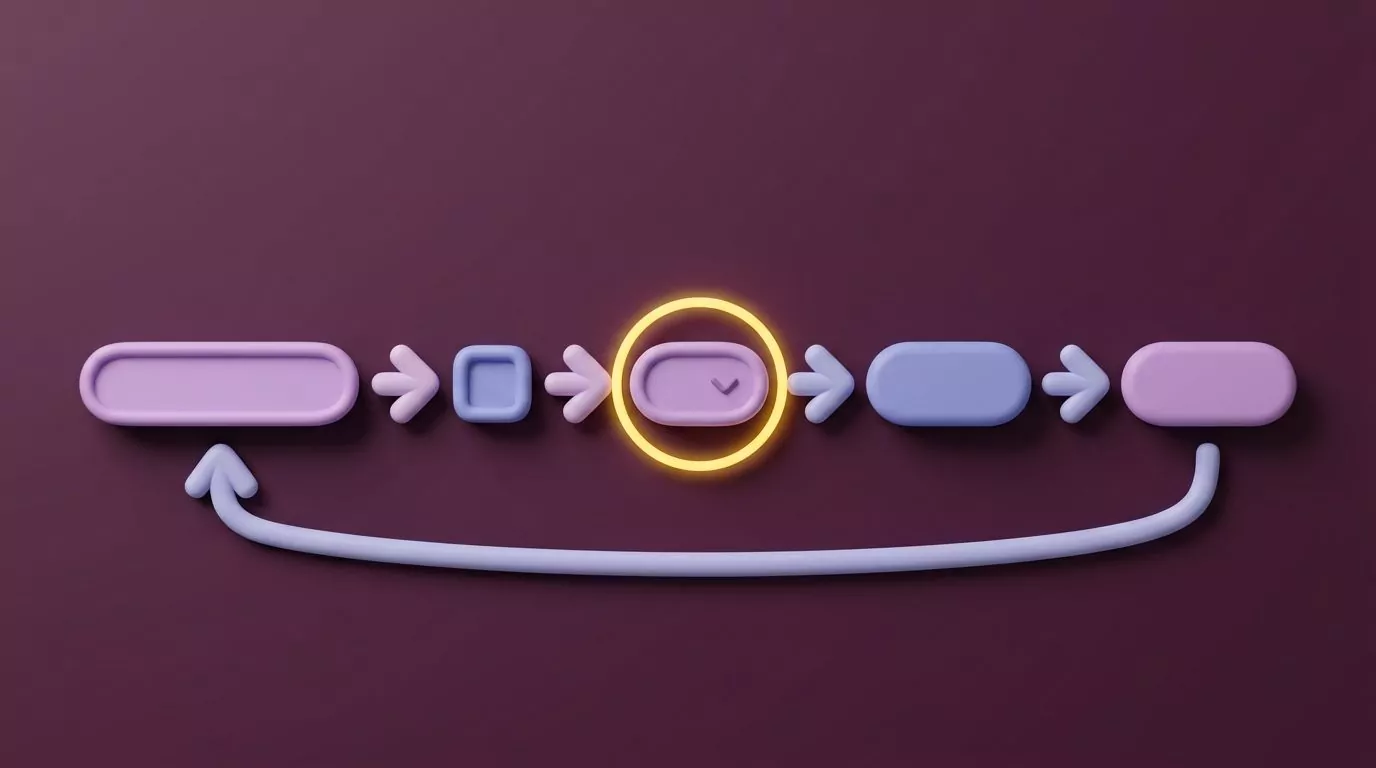
That is the whole of keyboard only navigation in one line: find the ring, move the ring, then press the ring.
Mac and Windows Side by Side: The Same Job, Different Keys
Both systems can do everything in this guide. They just spell it differently. Here are the eight jobs you will reach for most, written out in both languages.
| What you want to do | macOS | Windows |
|---|---|---|
| Switch to another app | Command plus Tab | Alt plus Tab |
| Switch windows inside the same app | Command plus backtick | Press the app's taskbar number repeatedly, so Windows plus 1, again and again |
| Move focus into a toolbar or side pane | Control plus F5 for the toolbar, Control plus F6 for panels | F6 cycles the panes of the window |
| Open the menu bar | Control plus F2 | Alt on its own, or F10 |
| Make Tab reach every control | System Settings, Keyboard, turn on Keyboard navigation | On by default, nothing to switch on |
| Open the search launcher | Command plus Space for Spotlight | Tap the Windows key, or Windows plus S |
| Close a window, quit an app | Command plus W closes, Command plus Q quits | Ctrl plus W closes, Alt plus F4 closes the window |
| Move between virtual desktops | Control plus Left or Right arrow | Windows plus Ctrl plus Left or Right arrow |
Two notes on the Mac column. On keyboards where the top row controls brightness and volume, add Fn, so Control plus F2 becomes Fn plus Control plus F2. And the backtick is the key just above Tab on most layouts.
One note on the Windows column. The steps to navigate Windows without mouse input barely changed between releases, so using a keyboard without a mouse on Windows 10 works almost exactly as it does on Windows 11. Microsoft keeps the full list of keyboard shortcuts in Windows in one place, and it repays a slow read once.
Apple publishes the matching list of Mac keyboard shortcuts. Skim both once, so you know what exists to look up later.

Full Keyboard Access on macOS and What It Unlocks
Windows readers can skip this section. On a Mac it is the one setting that makes everything else in this guide work.
Out of the box, macOS is shy about focus. Press Tab in a save dialog and it may hop between text fields while ignoring the buttons completely. That is not a bug. That is the default.
To fix it, open System Settings, click Keyboard in the sidebar, and turn on Keyboard navigation. Tab now reaches buttons, checkboxes, pop up menus and the rest of the window.
There is a second, deeper level. Under Accessibility, then Keyboard, you will find Full Keyboard Access, which turns the whole system into a keyboard driven surface with its own command set and a focus ring you can make thicker and easier to spot. It is more than most desk workers need. Apple documents the full behaviour if you want the maximum version, in its guide to Full Keyboard Access.
Two things change the day you switch Keyboard navigation on. Save dialogs stop being a trap, because you can Tab to Save and press Space. And web forms in Safari finally behave the way they do in every other browser.
Turn it on, then leave it on for a week before you judge it. The first two days feel odd. After that, going back feels like losing a hand.
Mouse Keys: Pointer Control From the Keyboard, and Why It Is a Last Resort
Sometimes there is no focusable control at all. A drawing canvas, a map, a stubborn old app that was never built for Tab. For those cases, both systems can move the pointer itself from the number pad.
Mouse Keys on Windows
Press left Alt plus left Shift plus Num Lock to switch it on, or find the toggle under Settings, Accessibility, Mouse. Then the number pad drives the pointer. The 4 and 6 keys move left and right, 8 and 2 move up and down, and the corner keys move on the diagonals.
To click, you first pick which button is active. The slash key selects the left button and the minus key selects the right one. Then 5 clicks, the plus key double clicks, 0 holds the button down and the full stop releases it, which is how you drag.
So the honest answer to how to left click without a mouse on Windows 10 and Windows 11 is this: press 5 on the number pad, once the left button is the active one. Microsoft has the full key map in its guide to using Mouse Keys to move the mouse pointer.
Mouse Keys on macOS
Open Accessibility, then Pointer Control, then Alternate Control Methods, and turn on Mouse Keys. On a full size keyboard the number pad moves the pointer and 5 clicks. On a laptop with no number pad, the keys around the home row stand in: 7, 8, 9, U, O, J, K and L move the pointer, and I clicks.
Here is the catch, and it is why this is a last resort. While Mouse Keys is on with the letter key layout, those letters no longer type. You cannot write a sentence and steer a pointer from the same hand position.
Nudging a pointer a few pixels at a time is also slow. Switch it on for the one control you cannot reach any other way, then switch it straight back off.
The Launcher Habit: Reaching Anything by Typing Its Name
If you build only one habit from this guide, build this one. Stop hunting for apps and start naming them.
On a Mac, press Command plus Space, type three or four letters, press Enter. On Windows, tap the Windows key, type, press Enter. Both search apps, files and settings panels from the same box.
The speed comes from being specific. Typing four letters and a return beats scanning a Dock or a taskbar and then aiming at a small icon.
Launchers also reach things that have no icon anywhere. Type "bluetooth" and you land in the right settings panel. Type a file name and you open the file without walking a folder tree one arrow at a time.
One rule makes this stick. When you want an app, never cycle through windows to find it. Cycling is for the two apps you are actively bouncing between. Everything else gets named.
The same idea lives inside apps with a command palette, which is most code editors and many web tools. The trigger is usually Ctrl plus K or Command plus K.
The Half Every Guide Skips: Getting Text Into the Field
You have Tabbed to the reply box. The ring is on it. Now what?
Search this topic and you will find guide after guide that walks you through focus rings and window switching, then stops dead. The only text answer most of them offer is the On Screen Keyboard.
That tool has a real job and this is not it. It exists for people who cannot use a physical keyboard and are pointing at a screen instead. Clicking letters one at a time is slower than the mouse you were trying to avoid.
If your hands are on the home row, you already have four better options.
1. Just type it
The dull answer is often the right one. Short replies are faster typed than anything else. Keyboard first does not mean you stop using the keyboard for the job it was built for.
2. Keep a snippet library
Most of what you send is not new. Triage lines, meeting confirmations, and the same three answers your customers always ask for.
macOS has this built in. Open System Settings, Keyboard, then Text Replacements, and add a short trigger. The long text expands as you type the trigger, in any app. Windows has no equivalent in the box, which is where a small text expander earns its place.
3. Reuse the clipboard
Windows keeps a clipboard history. Press Windows plus V, arrow to the item you want, press Enter. That turns the clipboard from one slot into a short list you can pick from without touching a pointer.
macOS has no built in history, so the clipboard there is still a single slot.
4. Say it out loud
This is the option that closes the loop. Your hands stay on the keys. One of them holds a key down. You say the sentence and it appears where the ring was.
Both systems ship something for this. On Windows, press Windows plus H for voice typing. On macOS, dictation lives in System Settings under Keyboard, and you choose the key that starts it.
The built in versions differ in how much punctuation they add and how much cleanup they leave you. That cleanup is what decides whether the habit survives past week one, because fixing a wall of unpunctuated text with only the keyboard is worse than typing it in the first place.
VoiceSnap Pro is built around this exact gap. You hold a shortcut you picked, speak, and let go. The text lands at the cursor with capital letters, punctuation and paragraph breaks already in place, and the app you were in never loses focus. Every dictation is also saved as a searchable note, tagged with the app and the time, so the reply you sent on Tuesday is still findable on Friday.
The scope matters here, because this article is about replacing a pointer and that is not what it does. It is a text entry tool. It will not click buttons, open menus, or move the pointer for you. The shortcuts above are still what gets you to the field. Audio is transcribed and then discarded, only the text notes remain, and it runs on macOS and Windows desktops only. It is pre launch today, at $39 one time for early access.
Troubleshooting Focus When Tab Stops Behaving
Four things go wrong often enough to be worth naming. Each one has a way out.
Focus is trapped in a dialog
You press Tab and the same three controls cycle forever. This is usually on purpose. A modal dialog holds focus so that you deal with it before anything else.
Press Escape first. If Escape does nothing, look for a Cancel or Close button in the cycle and press Space on it. On a Mac, Command plus full stop is the old cancel signal and still works in plenty of dialogs. On Windows, Alt plus F4 closes the dialog itself.
A web app with a broken Tab order
Tab jumps from the top of the page straight to the footer, or lands somewhere you cannot see. Someone built the page with clickable elements that were never made focusable.
Route around it with find. Press Ctrl plus F, or Command plus F on a Mac, type a word from the control you want, and press Enter. Escape leaves you near the match, and a Tab or two usually lands on what you were after.
Browsers also offer caret browsing, which is F7 on Windows. It drops a text cursor into the page so you can walk it with the arrow keys and Tab out from wherever you stop.
The default button is not the one you want
You press Enter expecting Save and the dialog throws your work away instead. Enter fires the default button of the window, not the button you Tabbed to.
The fix is one key. Tab to the button you actually want and press Space. Space presses the focused control. Enter presses the default. Once you know the difference you stop losing work to it.
Tab skips the control you want
On a Mac, check that Keyboard navigation is on. That alone explains most of these.
In a browser, the control may be a plain block of markup with no focus behaviour attached, in which case Tab will never reach it. Try the app's own shortcut first, then the find trick above. If neither works, this is the moment Mouse Keys is worth switching on for ten seconds.
A Realistic Keyboard First Hour
Here is the whole thing end to end, from opening the laptop to sending a reply.
- Open the lid. Type your password and press Enter. No pointer needed yet.
- Launch mail by name. Command plus Space, or the Windows key, then type "mail" and press Enter.
- Walk the inbox with the down arrow. A message list is a list, so arrows are the right tool.
- Press Enter to open the message you care about.
- Press R to reply. Most mail apps drop the cursor straight into the body for you.
- Fill the body. Type it, expand a snippet, or hold your dictation key and say it.
- Send with Command plus Enter on a Mac, or Ctrl plus Enter on Windows.
- Press Escape to get back to the list, then switch app with Command plus Tab or Alt plus Tab.
- In the chat app, jump to a channel with Ctrl plus K, type three letters, press Enter.
- Reply, send, move on.
Count the pointer moves in that hour. There were none.
The step people trip on is step 6. Steps 1 to 5 turn into muscle memory inside a week. Producing the words is the part that still costs something, which is why the text entry half deserves as much thought as the shortcuts do.
Frequently Asked Questions
How do I move the cursor without a mouse?
If you mean the text cursor, use the arrow keys, and hold Ctrl or Option to jump a whole word at a time. If you mean the pointer, turn on Mouse Keys and steer it with the number pad. On Windows the toggle is left Alt plus left Shift plus Num Lock, and on macOS it sits under Accessibility, then Pointer Control.
How do I right click without a mouse?
On most Windows keyboards there is a menu key between right Alt and right Ctrl, and it opens the context menu for whatever has focus. If your keyboard has no menu key, Shift plus F10 does the same job. A Mac has no equivalent key, so either use Mouse Keys with the right button selected, or look up the app's own shortcut for the command you wanted from that menu.
How do I switch between windows using only the keyboard?
Alt plus Tab on Windows, Command plus Tab on a Mac. Hold the modifier down and press Tab repeatedly to walk the list, then let go on the one you want. To move between windows of the same app on a Mac, use Command plus backtick.
Is there a keyboard shortcut to click a link on a web page?
Tab moves between links and Enter follows the focused one. To find a specific link fast, press Ctrl plus F or Command plus F, type part of the link text, press Enter, then Escape and Tab. Firefox also lets you press the apostrophe key to search link text on its own.
How do I type without touching the keyboard?
Use dictation. Windows has voice typing on Windows plus H, macOS has dictation in Keyboard settings, and tools like VoiceSnap Pro put it on a hold to talk shortcut that inserts punctuated text at the cursor. The On Screen Keyboard is the other route, but clicking keys one by one is slow unless a physical keyboard is genuinely not an option.
Where to Start Tomorrow
Pick two things, not ten. Turn on Keyboard navigation if you are on a Mac, and start opening every app from the launcher instead of the Dock or taskbar.
Shortcuts get you to the field. Something still has to fill it. If holding one key and saying the sentence sounds better than typing it out, you can join the VoiceSnap Pro waitlist for early access at $39 one time.